Because Jetbrains chose to use Java (yeah I know, cringe language) as the language behind their IDEs, it doesn't render properly (or at all) on Wayland.
To overcome this, run this in Terminal: export _JAVA_AWT_WM_NONREPARENTING=1 && rider - You may also pass the export into the desktop entry so that you can skip opening Terminal.
And before you say, "Java is a good language! BOO BOO SOB SOB" - No, it isn't.
Maim is a mess anyways, freezing and dying left and right on X11. Use Grim instead if you are on Wayland.
Packages: grim, grimshot
To take a screenshot, run this command (bind it to a key): grimshot copy area
What a surprise.
Update: Moved instructions over to Hyprland's wiki.
This is most lilely because of a libva error, to fix it on Arch, run these commands:
- Install the unofficial NVIDIA VAAPI Driver from elFarto:
paru -S nvidia-vappi-driver-git - Run Unity Hub using
LIBVA_DRIVER_NAME=nvidia unityhub - Done
Install the xdg-desktop-portal-gtk portal and it should be working from there.
From what I know, no other portal really implements a file chooser, apart from GTK.
Warning: Setting up OBS on Wayland in general is a hit or miss.
Second warning: This is focused on Hyprland, but it should apply to other wl-roots compositors as well.
First, thanks to PowerBall253 for the initial guide, follow it before this one, as mine focuses more on fixing issues.
- Remove the gnome desktop portal, if installed.
sudo pacman -Rcsn xdg-desktop-portal-gnome - If your Hyprland config contains lines like
dbus-update-activation-environmentand so on, comment them out. - If your config also contains lines where it starts
xdg-desktop-portalservices, comment them out. - Install the required packages:
pipewire wireplumber xdg-desktop-portal-wlr+ OBS Studio if not already installed - Run
systemctl --user enable pipewire.socket pipewireand then make sure the services are all enabled:systemctl --user status pipewire.socket pipewire. - Install a patched NVIDIA package from the AUR, otherwise OBS will just sit there and not understand what NVENC is:
paru -S nvidia-utils-nvlax - Restart your PC, not just your session.
- Run Hyprland and open OBS Studio
- If you followed the guide by PowerBall first and then this one, you should see
Screen Capture (PipeWire)being available as a source.
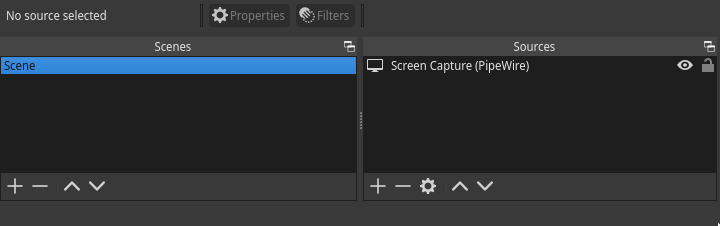
ALTERNATIVE: Install wlrobs-hf from the AUR, add the Wayland output(dmabuf) source and done.
If you set up your portals properly like above and it still doesn't work, launch this inside a terminal and try screenshare: /usr/lib/xdg-desktop-portal -r
Warning: Incomplete section, use at your own risk!
Let's say you are using the Orchis theme and want it to apply to applications such as Thunar. Well, does this look correct?
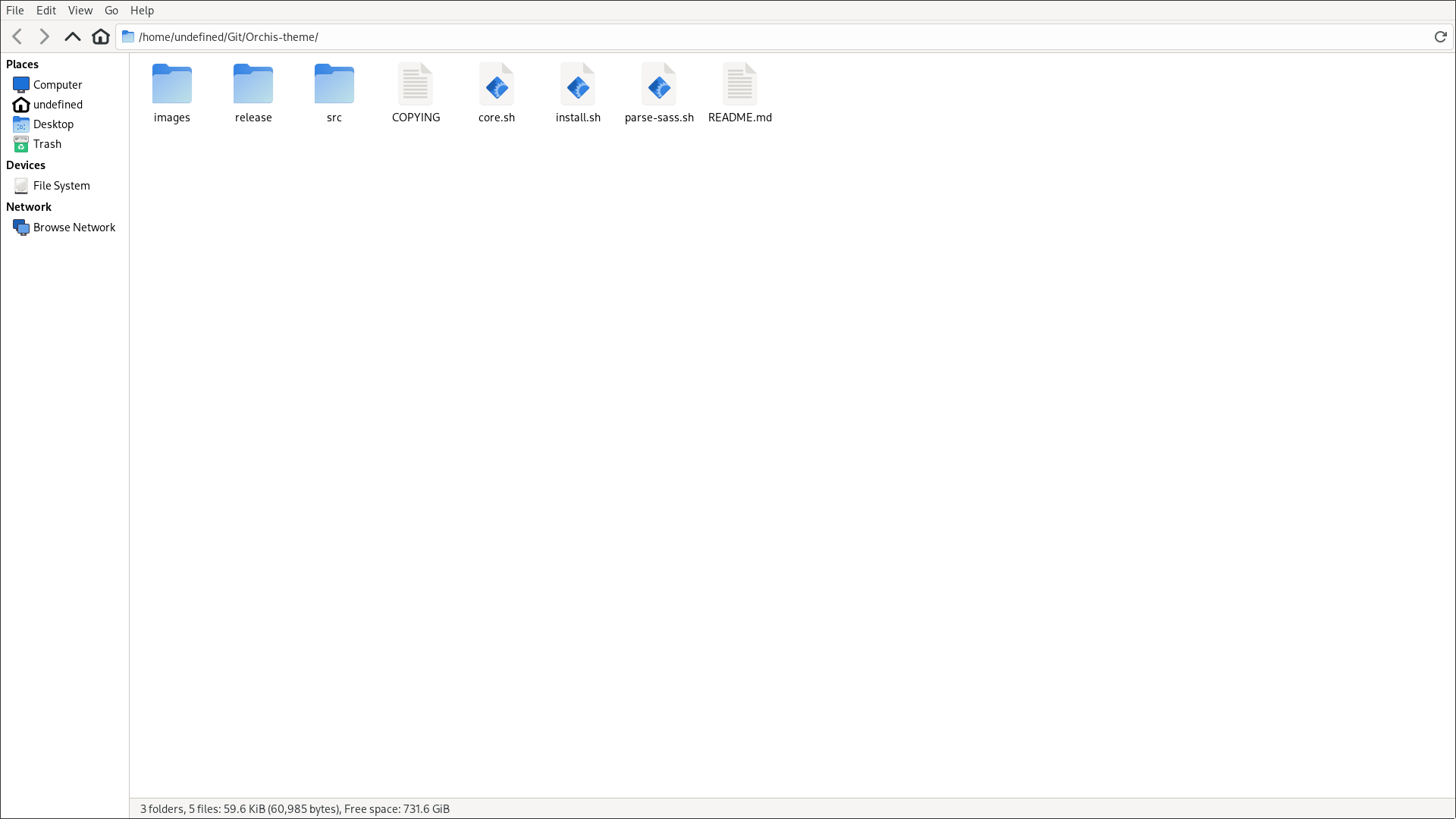
No? It hurts your eyes right? Yeah thought so.
- Install the theme of your liking, using Orchis in this example with Thunar as the file manager
- Open up a terminal and write
export GTK_THEME=Orchis:dark-- ThemeName:Variant - Write
thunarto open Thunar and congrats, your theme is there and you saved your eyes!
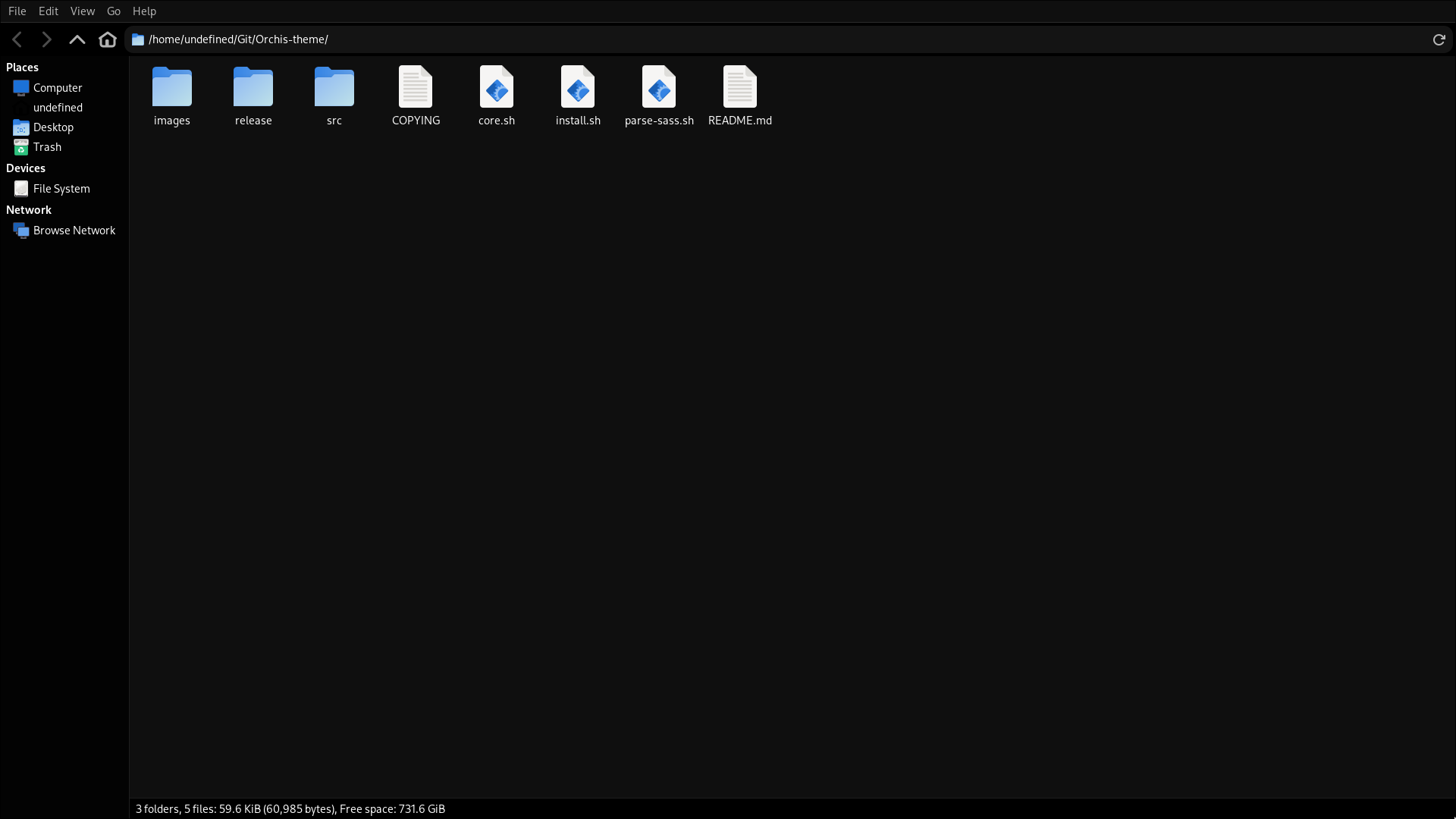
You may wanna pass this to /etc/environment though so you don't have to export the variable yourself constantly.
- Open up Flatseal
- Press
All Applications - In
Other filesadd in/home/YOUR_USERNAME/.icons - Done, now you should see the cursor in Flatpak applications.
No idea if this is tied to NVIDIA GPUs, but seems like it is. Anyways, launch your RAM-Hog application with these flags:
application-name --enable-features=UseOzonePlatform --ozone-platform=wayland --use-gl=egl
I have no idea why this happens for some, while for others it just works. But it's whatever I guess.
Blame NVIDIA, there are ways around it, like starting an X11 session, applying OC and then going back to your Wayland session, but it's all a huge mess.
Go AMD instead.
Don't use the official Discord client, nor the AUR hacky electron-upgraded ones.
Instead, use ArmCord which wraps around the web version of Discord, while also respecting your privacy, blocks certain trackers and has plugin-support.
Note: There's also WebCord, but it tends to break after updates with weird errors, doesn't have plugins, and is basically in a locked-like state since nothing new has happened for ages.
Yes and no.
No if you make a file at ~/.config/electron-flags.conf with the following contents:
--enable-features=UseOzonePlatform
--ozone-platform=wayland
Although it's worth noting that a lot of applications tend to not give a shit about that file.
Yes if the application is either from Flatpak and doesn't have read permissions for the file, or if the application simply just does not want to run on Wayland at all.
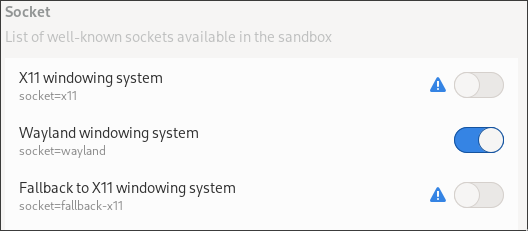
For Electron Flatpak applications to even run properly on Wayland, use Flatseal and remove the X11 Display Server permissions and only allow it to access Wayland. Below is an example for Librewolf
- Install
qt5-waylandandqt6-wayland - Run Stremio and check if color-banding is still present.
If still present and you can't find a solution, your best workaround might just be to run it in XWayland for the time being.
For non-Flatpak users:
export QT_QPA_PLATFORM=xcb && stremio
For Flatpak users:
export QT_QPA_PLATFORM=xcb && com.stremio.Stremio
For example, you may get this annoying error: polkit-agent-helper-1: error response to PolicyKit daemon: GDBus.Error:org.freedesktop.PolicyKit1.Error.Failed: No session for cookie
- Install
polkit-gnome(sudo pacman -S polkit-gnome) - Inside a startup script (or just run it in a terminal manually), run this:
exec /usr/lib/polkit-gnome/polkit-gnome-authentication-agent-1 & - Done
This seems to be a bug which still hasn't been fixed, as it only occurs for some commands.
For example when you Browse Folder in Steam and it opens Terminal. Not limited to Wayland, but thought I may as well put it here.
- Download a File Manager, for example
Nemo - Assign the desired File Manager to be the default one using
xdg-mime default (name).desktop inode/directory - Done
This took me days to even figure out, don't ask why and how I even got to this point because I don't know either.
- Install Steam through Flatpak
- Make a new directory at your home called
.steam, or copy-paste this:mkdir ~/.steam - Take ownership of it using
chown $(whoami):$(whoami) ~/.steam - Ensure Flatpak has read-write permissions of that directory (
rw) by executingsudo flatpak override com.valvesoftware.Steam --filesystem=/home/$(whoami)/.steam:rw - Launch Steam
If all went accordingly, Steam should launch and work. If not, then I have no idea what your Steam is on.
If you directly run a game through Bottles that isn't from Flatpak, then you might have noticed that you can't get into a game (or you get kicked after 30 seconds).
This is because Proton doesn't have the Easy AntiCheat runtime set by default, you'll have to do that yourself.
- Install Steam
- Install
Proton EasyAntiCheat Runtime - Right-Click EasyAntiCheat Runtime -> Manage -> Browse local files
- Copy the absolute path to the folder, then set a new environment variable inside of Bottles named
PROTON_EAC_RUNTIME - Paste in the EasyAntiCheat Runtime path into the newly-created environment variable, and save
- Run your game and gg's, it should work.
This should also work for BattlEye, using the PROTON_BATTLEYE_RUNTIME environment variable.
Note: This isn't a perfect solution. Sometimes EAC still will fail to initialize even if you do all of this. Why, I don't know.
If you set your cursor theme through LXAppearance and can't see it across all of your applications, then it didn't get set properly.
- Locate the exact name of the cursor theme, it's listed in LXAppearance -> Mouse Cursor
- Open Terminal and write in
gsettings set org.gnome.desktop.interface cursor-theme (name-of-theme) - Open
~/.config/gtk-3.0/settings.iniin your favorite text editor - Set the value of
gtk-cursor-theme-nameto the cursor themes name - Restart and done!
Easy fix for most PCs:
- Edit your kernel parameters
- Add
acpi_enforce_resources=lax - Regenerate your GRUB config
- Restart and done, they should work after you have detected them using
sensors-detect
Note This isn't a complete "fix", but more a workaround.
It's also expected that you have already enabled Web Render, etc.
- Make sure your theme is actually making the main window transparent, which is what Hyprland will be blurring
- Open your Hyprland config
- Add this line:
windowrule=opacity 0.999,firefox-firefoxbeing the class name of the browser. - Restart your browser
- Done
It's hacky though, as the blur will go away when you fullscreen the browser, or focus a different window.
- Open
~/.config/Epic/PortalWars/Saved/Config/LinuxNoEditor/GameUserSettings.ini - Set
bHasRunAutoCalibrationtoTrue - Save and Splitgate should now work
There is no real solution to this apart from trying to work-around it via older DXVK versions (which will still crash and lack features), or forcing DirectX 12.
- Download CLD12
- Follow the instructions
- Done, it should now work. Repeat step 2 every time you restart the game, as the launcher will try and revert the changes.
Steps above has also been confirmed working on the Steam Deck.
Remove the amdvlk package and it should work.
- Option 1: Use an USB and chroot into your machine.
- Option 2: Run
pkexec, enter your password and now you should be running commands as root, so fix what you broke and thenexit.
Electrooooon!
- Run
XDG_RUNTIME_DIR=/run/user/1000 (application) - If it works, proceed. If not, I have no idea what your issue is related to if you setup the flags correctly (aka UseOzonePlatform etc)
- Add
XDG_RUNTIME_DIR=/run/user/1000to/etc/environmentand reboot
Done!
- Make sure you have followed the Arch Wiki regarding bluetooth, and what packages to install.
sudo modprobe btusb
Bluetoothctl commands:
power onpairable onscan onagent offagent NoInputNoOutputtrust (keyboard-mac)pair (keyboard-mac)- Done, it should now be connected
- Add these lines into your theme:
#TabsToolbar, #titlebar, #main-window, #navigator-toolbox {
	-moz-appearance: none !important;
	background-color: rgba(255, 255, 255, 0) !important;
	background-image: none !important;
}- If you're using Hyprland, add this window rule to make the blur not become solid:
windowrule=opacity 0.999,NAME, for example on Mullvad Browser, it's:windowrule=opacity 0.999,Mullvad Browser.
This isn't a Wayland-related issue, it's an issue with the high-resolution scrolling of the mouse which broke in the 6.x kernel series AFAIK. Source
To fix it, you have to either use a different libinput package on X11 (not recommended imho), or you can follow these basic steps to blacklist the module:
- Run
sudo nvim /etc/modprobe.d/blacklist.confor use any other text editor. - Write in
blacklist hid-logitech-hidpp - Save and write
sudo mkinitcpio -P - Reboot your PC
- Done
Credits to Dutxs for the initial guide on blacklisting the high-resolution scrolling module, which works as a workaround for this issue.
First have you ensured that you have installed the udev rules? Read how to install them here.
If that didn't do it, follow these instructions. Note that I'm on Arch, so you'll have to recreate the steps for whatever distro you're using.
- Uninstall
openrgb - Install
openrgb-git,libopenrazer,openrazer-daemon,openrazer-driver-dkmsandpython-openrazer - Unplug your RAZER dongle and put it into a different USB slot, just in case
- Open OpenRGB and if everything went as it should, your device(s) should now be detected.
Otherwise if this didn't work, you can try alternatives like razergenie and razercommander.
Although they are less convenient since having everything in one software is often the most ideal, it's there if you really can't get OpenRGB to work.

Your network car (or USB) is probably in power-saving mode. What fixed it for me (observed via ping netflix.com) was: sudo iwconfig INTERFACE power off.