


A blazing-fast, Obsidian-style Markdown WYSIWYG editor built natively as a VS Code extension. Experience seamless real-time preview, rich text formatting, and frictionless note-taking directly inside your code editor. This extension serves as the ultimate VS Code Markdown alternative, bringing the aesthetic and productivity of Notion and Obsidian to your IDE.
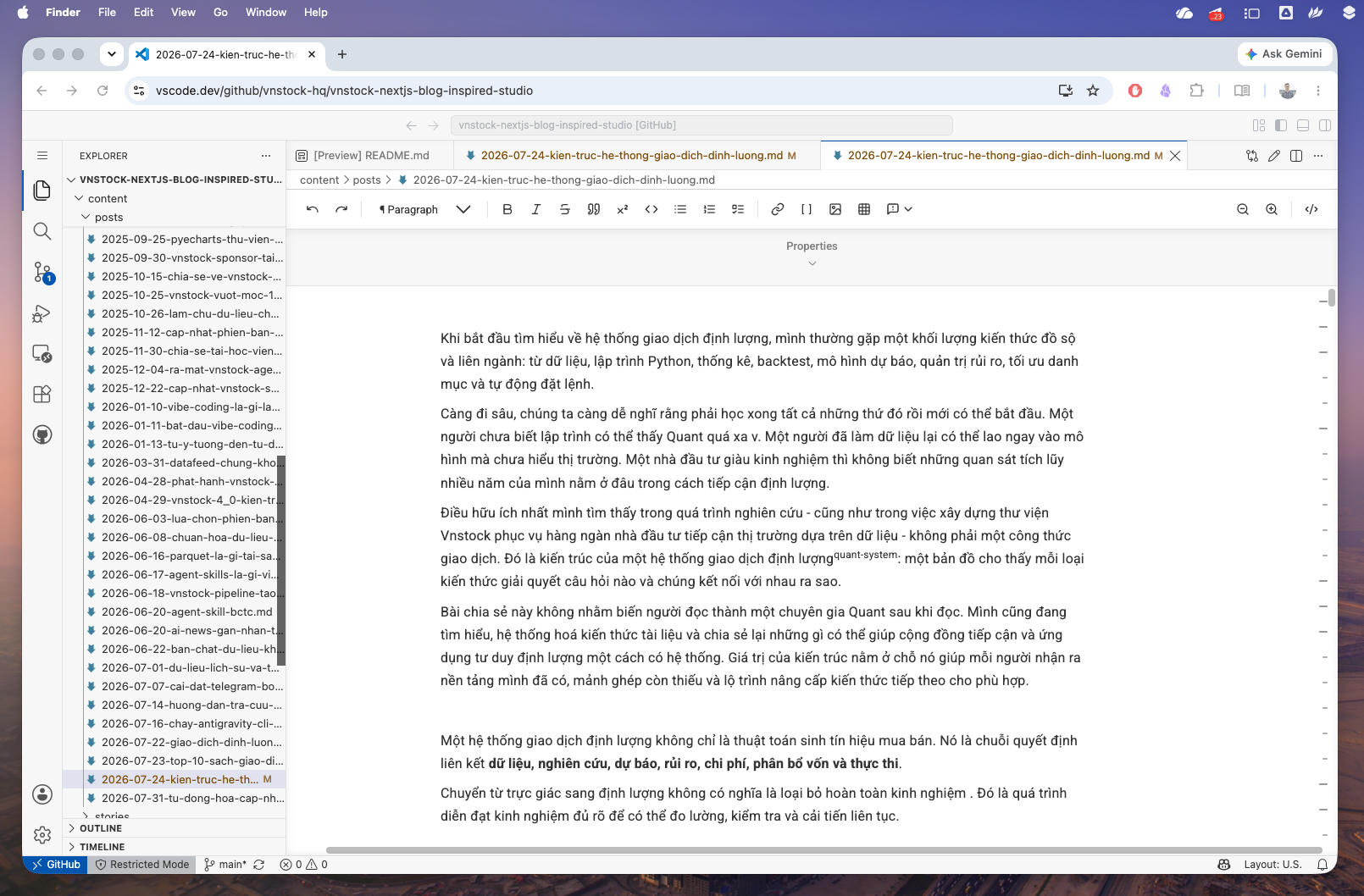
Tired of splitting your screen just to see how your Markdown looks? Default VS Code forces you into a clunky dual-pane setup, wasting screen space and breaking your flow. This extension brings the true WYSIWYG (What You See Is What You Get) experience right into your IDE, allowing you to edit styled text visually without writing raw syntax. Perfect for crafting README.md files, API documentation, or personal knowledge management (PKM).
-
Obsidian Experience Without the Vault Overhead: Enjoy the frictionless, elegant writing experience of Obsidian directly inside VS Code. No need to create heavy vaults or complex setups just to edit a project README or documentation. One editor to rule your code and docs!
-
True WYSIWYG & Blazing Fast Performance: Experience lightning-fast, buttery-smooth Markdown editing without the clunky split-screen. Thanks to a highly optimized, web-first architecture, the extension loads instantly and performs flawlessly even in pure web environments like
vscode.dev. -
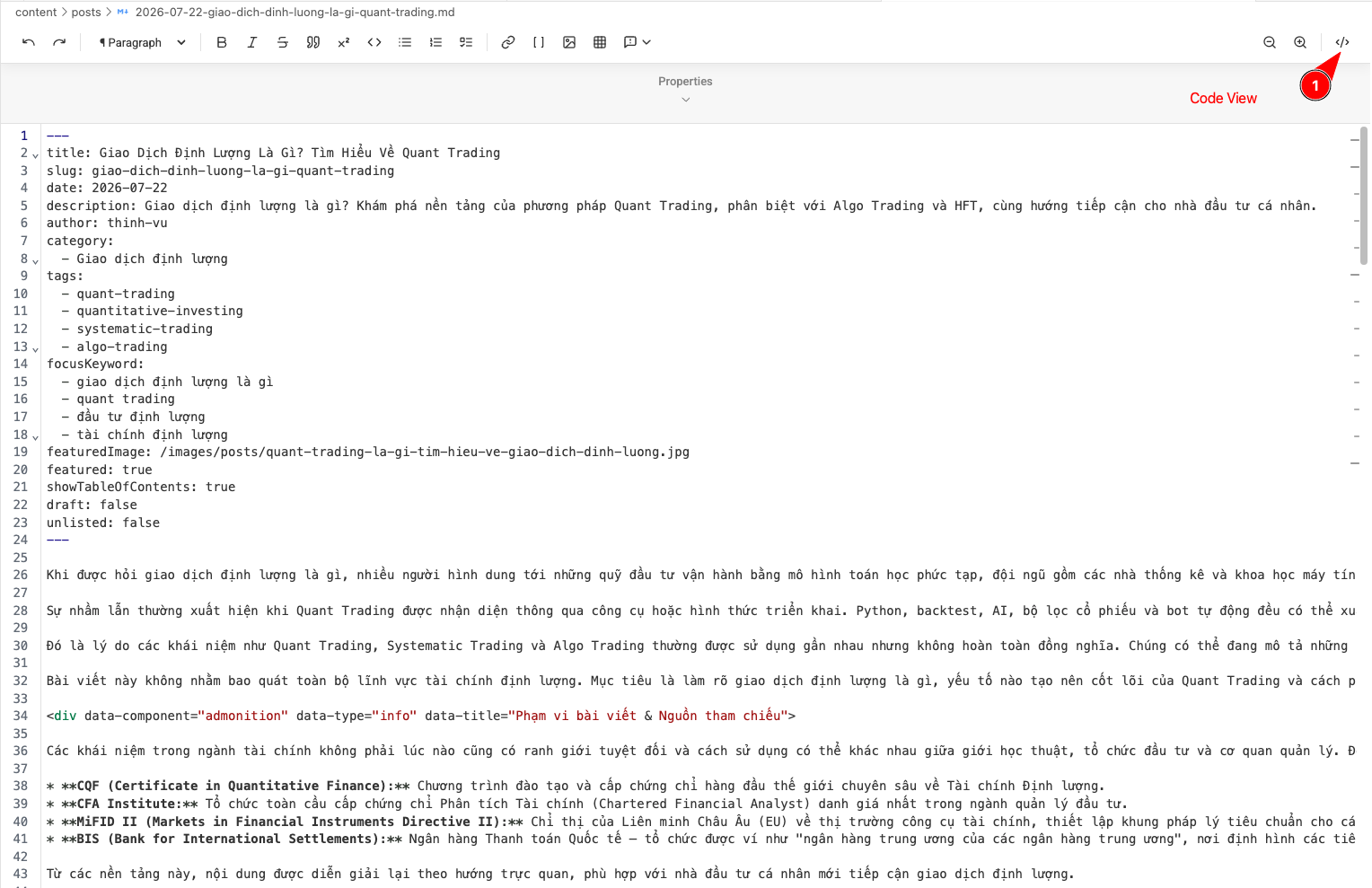
Zero-Lag Dual-Mode Synchronization: Switch instantly between the rich Live Editor and a robust Source Mode powered by CodeMirror 6. Unlike other editors that claim to sync but suffer from intense lag or erratic cursor jumps, our editor delivers a rock-solid, buttery-smooth sync that accurately preserves your precise cursor position during real-time typing and DOM updates.
📸 View Source Mode Editing
-
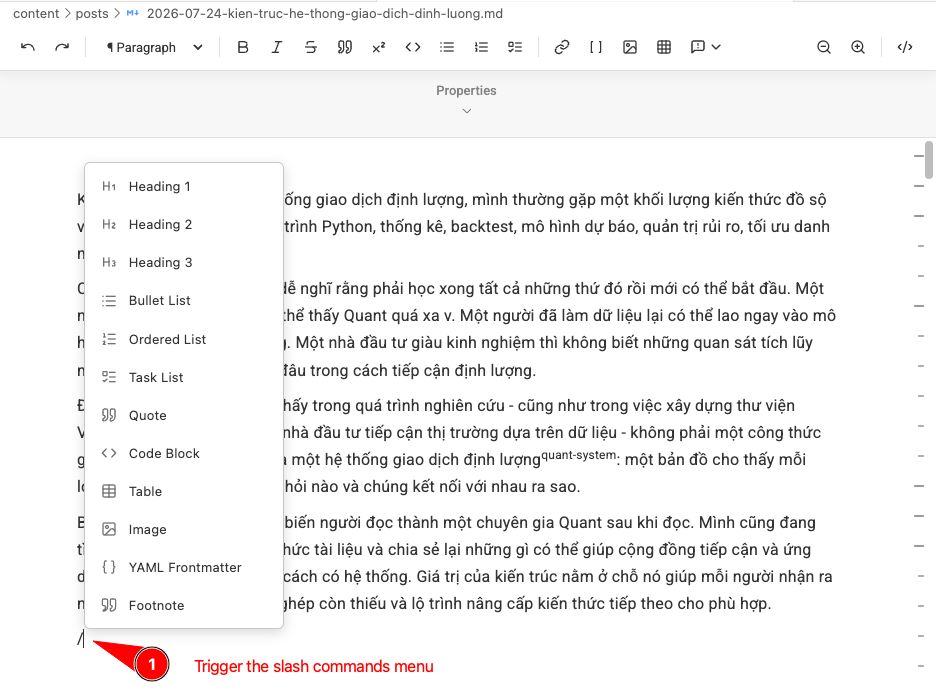
Slash Commands & Dynamic Templates: Type
/to instantly access a sleek quick-insert menu enriched with premium Lucide icons. Ditch clunky JSON snippets by configuring a local folder of your own Markdown templates and seamlessly inserting them into your current document using the Slash command or keyboard shortcuts (Cmd/Ctrl + Shift + E).📸 View Slash Commands
-
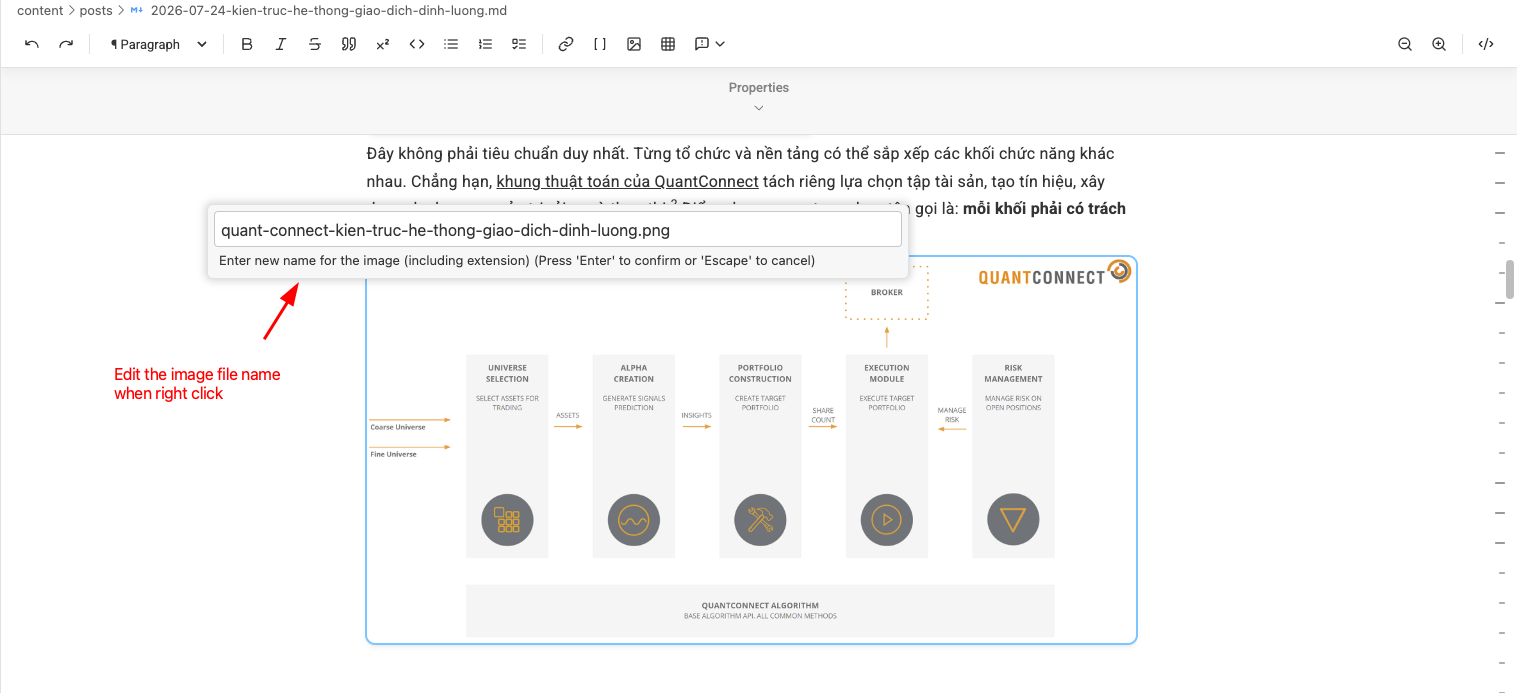
Smart Asset & Media Management:
- Auto-Paste: Automatically save attached images to a customizable local directory when pasting directly into the editor.
- Smart Deletion: When you delete a markdown file, the editor intelligently asks if you want to clean up its attached images and assets to prevent system junk!
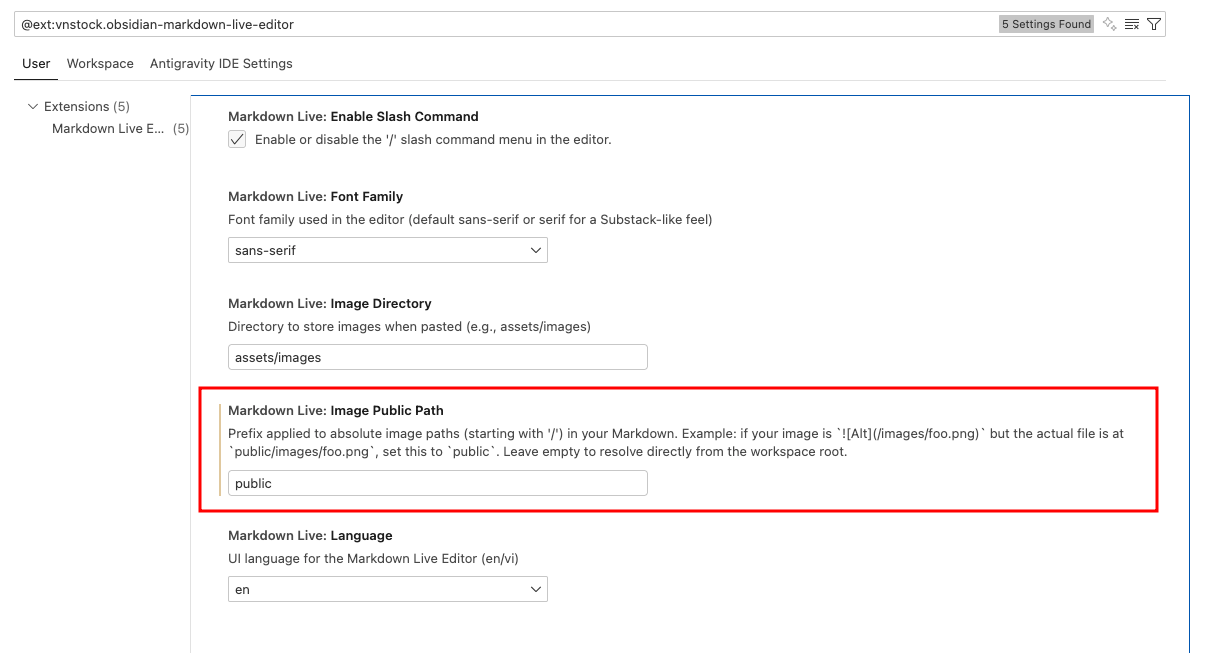
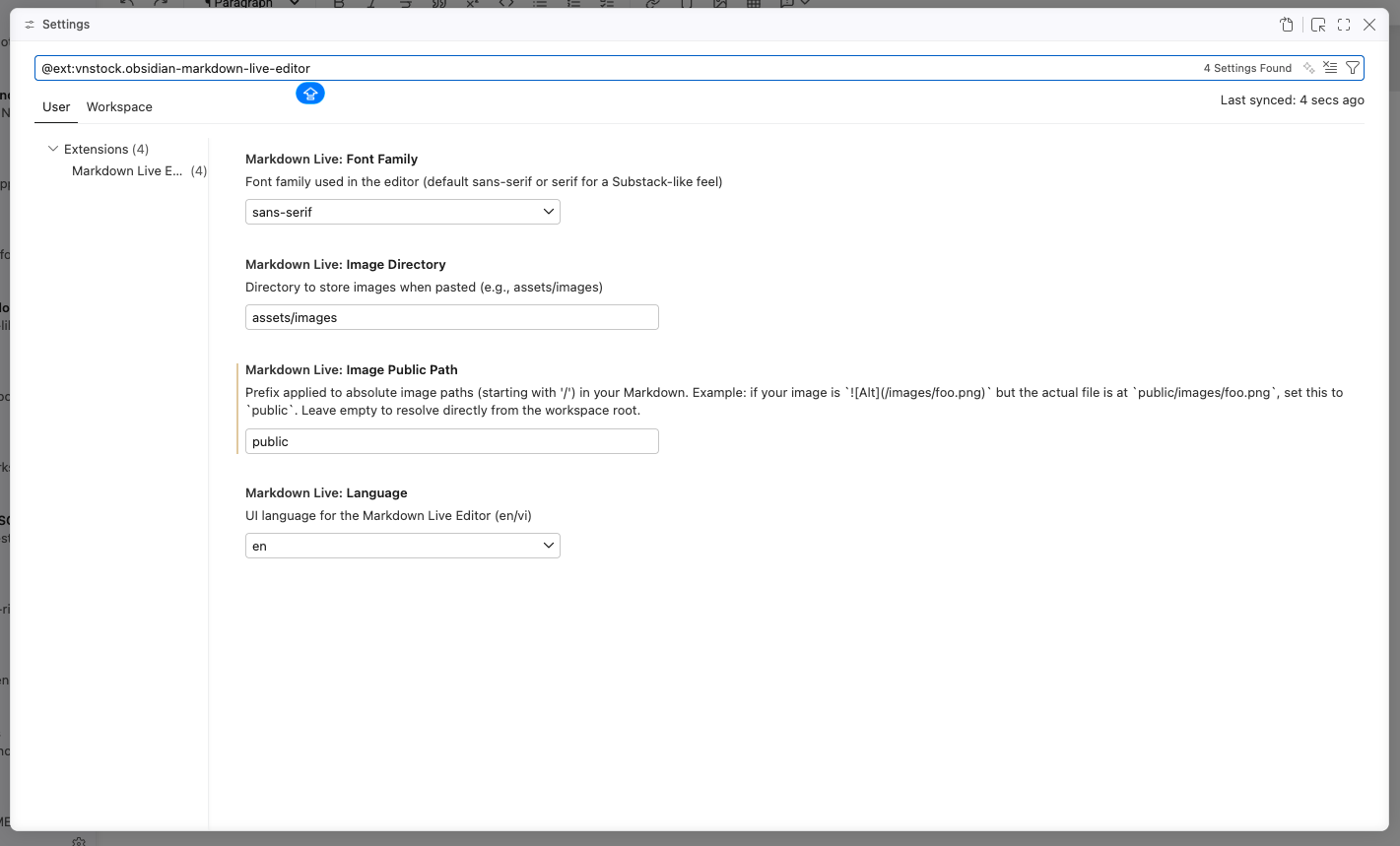
- Auto-resolve: Effortlessly resolves absolute image paths by prefixing them in the preview (e.g. for a Next.js
publicdirectory), keeping your raw Markdown code clean and portable. You can also rename images effortlessly via the context menu.
📸 View Media Management
-
Workspace Sidebar Explorer:
- A dedicated native Sidebar panel for managing your Markdown notes, separating your writing vault from your code explorer.
- Beautiful note cards featuring automatic Image Thumbnail Extraction and text previews.
- Smart organization with two dedicated tabs: Recent Files (for quick access to active work) and Vault Files (for alphabetical browsing).
- Filter the noise: Configure a specific
markdownLive.sidebarScanDirectoryso the sidebar only shows your actual notes, ignoringnode_modulesor build folders. - Consolidated quick-actions to create empty notes or spawn notes directly from your templates.
-
Seamless AI Agent Integration (Send to AI Context):
- Highlight any excerpt in the live editor, right-click to select "Send to AI Context", or use keyboard shortcut
Cmd + Shift + L(Ctrl + Shift + Lon Windows/Linux). - Effortlessly tags and injects the selected context directly into your active Antigravity AI Agent / VS Code Chat panel, attaching direct file references with pinpoint precision.
- Highlight any excerpt in the live editor, right-click to select "Send to AI Context", or use keyboard shortcut
-
Beautiful PDF Export:
- Export your Markdown documents into professional, beautifully styled PDFs with a single click.
- Powered by Paged.js for true print pagination, complete with automatic Table of Contents generation and customizable print styles.
-
In-Editor Find & Replace:
- A fully interactive, floating Find & Replace widget embedded natively inside the WYSIWYG interface. Includes Match Case toggling and supports standard
Cmd + Fshortcuts.
- A fully interactive, floating Find & Replace widget embedded natively inside the WYSIWYG interface. Includes Match Case toggling and supports standard
-
Native Git Diff Compatibility:
- Designed to play nicely with VS Code's Source Control. If set as your default Markdown editor, clicking a changed file intelligently falls back to the native split-screen Git Diff so you never lose visibility over your version history.
Navigation & Organization
-
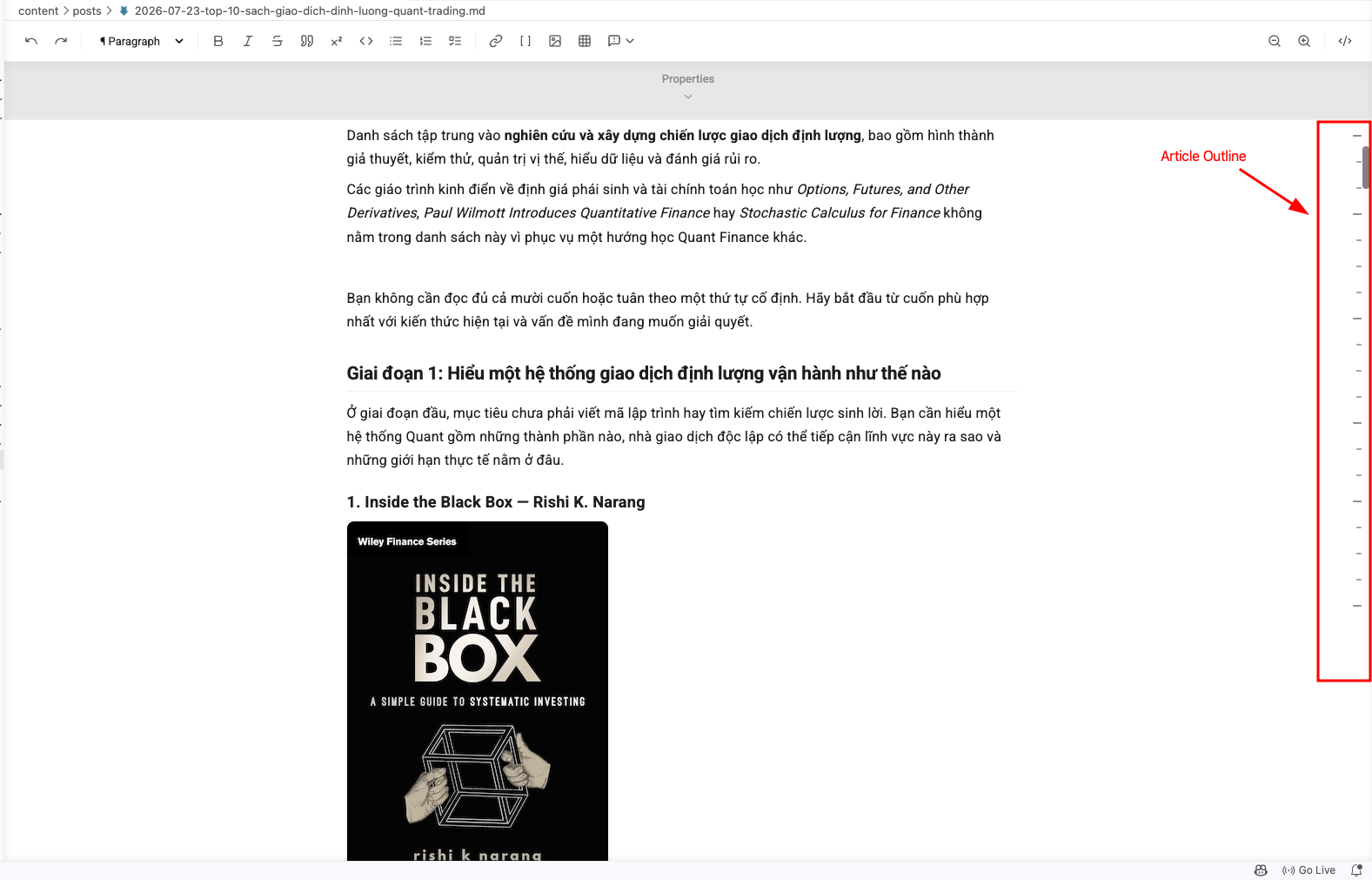
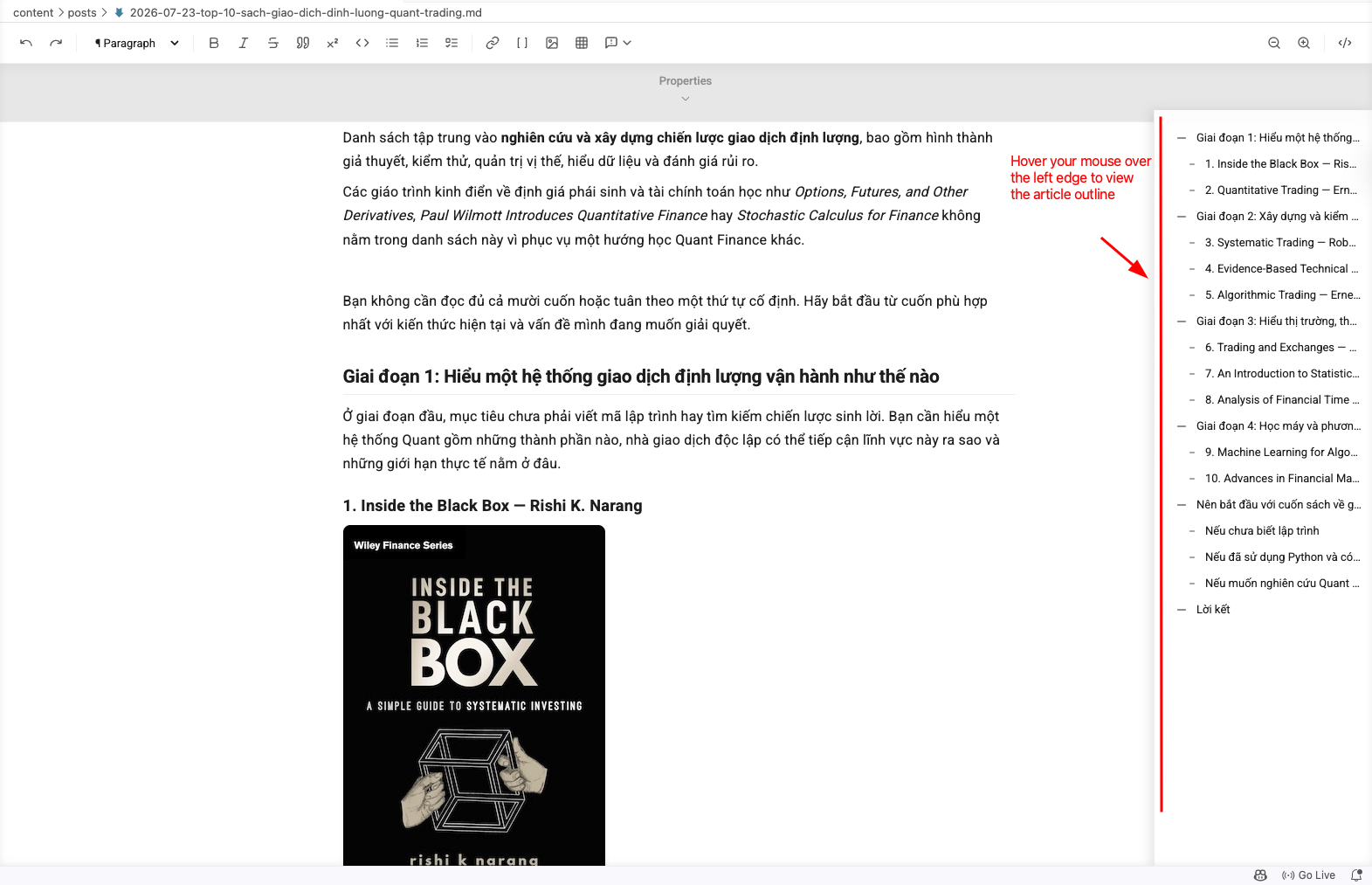
Dynamic Flyout Outline: A beautifully animated hierarchical outline navigation on the right edge. It expands gracefully to reveal full text when hovered, keeping your workspace clean.
📸 View Flyout Outline
-
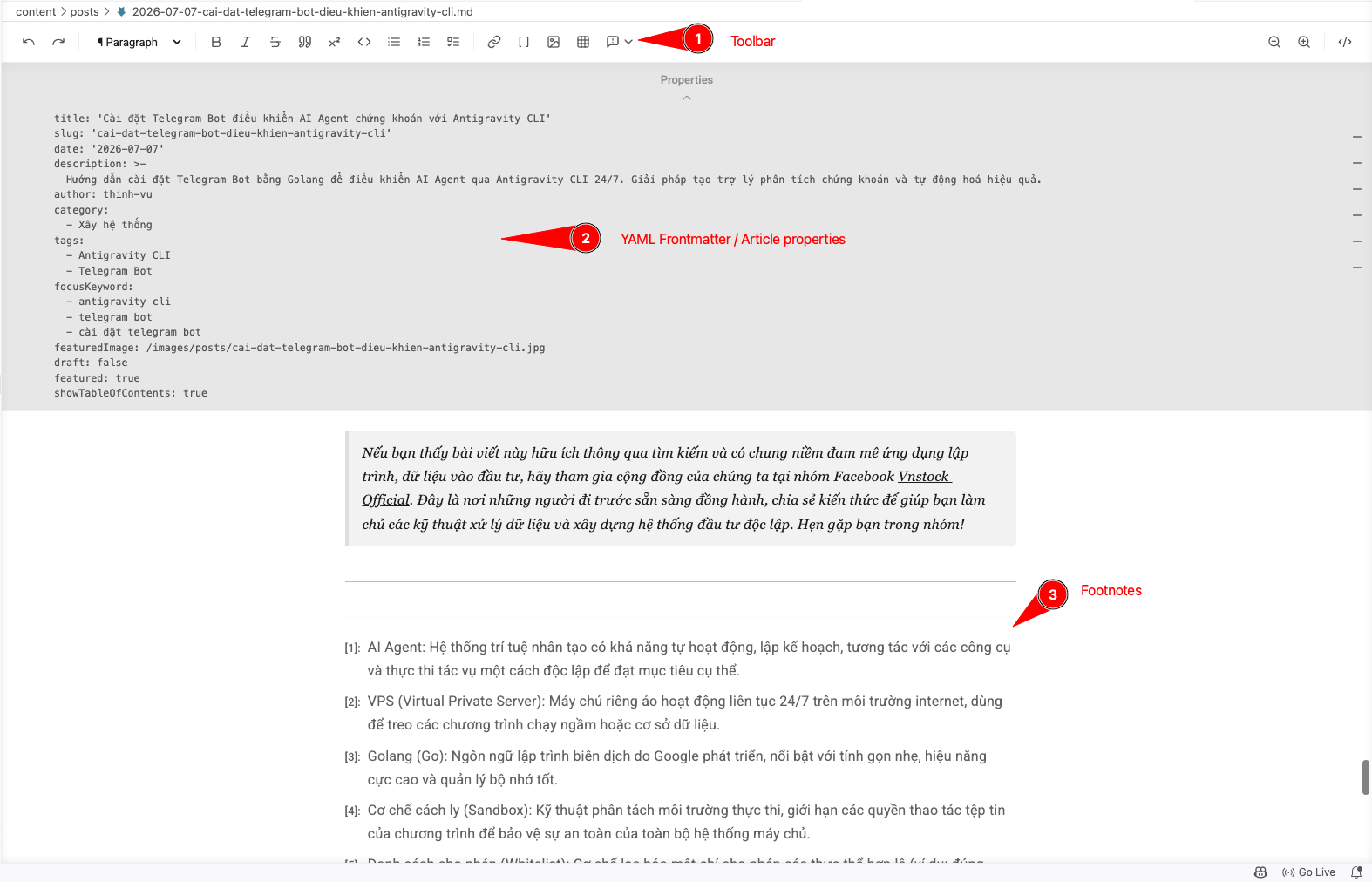
YAML Frontmatter & Metadata: Built-in parsing for YAML metadata (like Obsidian). Offers an elegant, collapsible UI to edit document properties without cluttering your writing.
📸 View Metadata & Footnotes
-
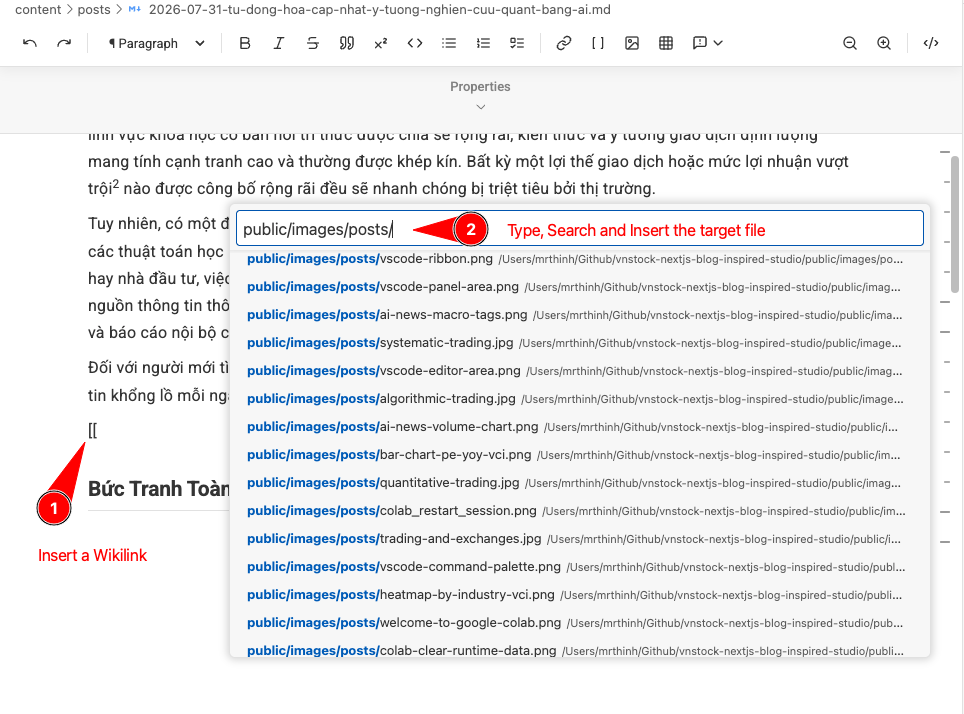
Smart Wikilinks: Type
[[to trigger a file search dialog, instantly converting selections into standard relative Markdown links or image embeds.📸 View Smart Wikilinks
Extended Markdown Syntax
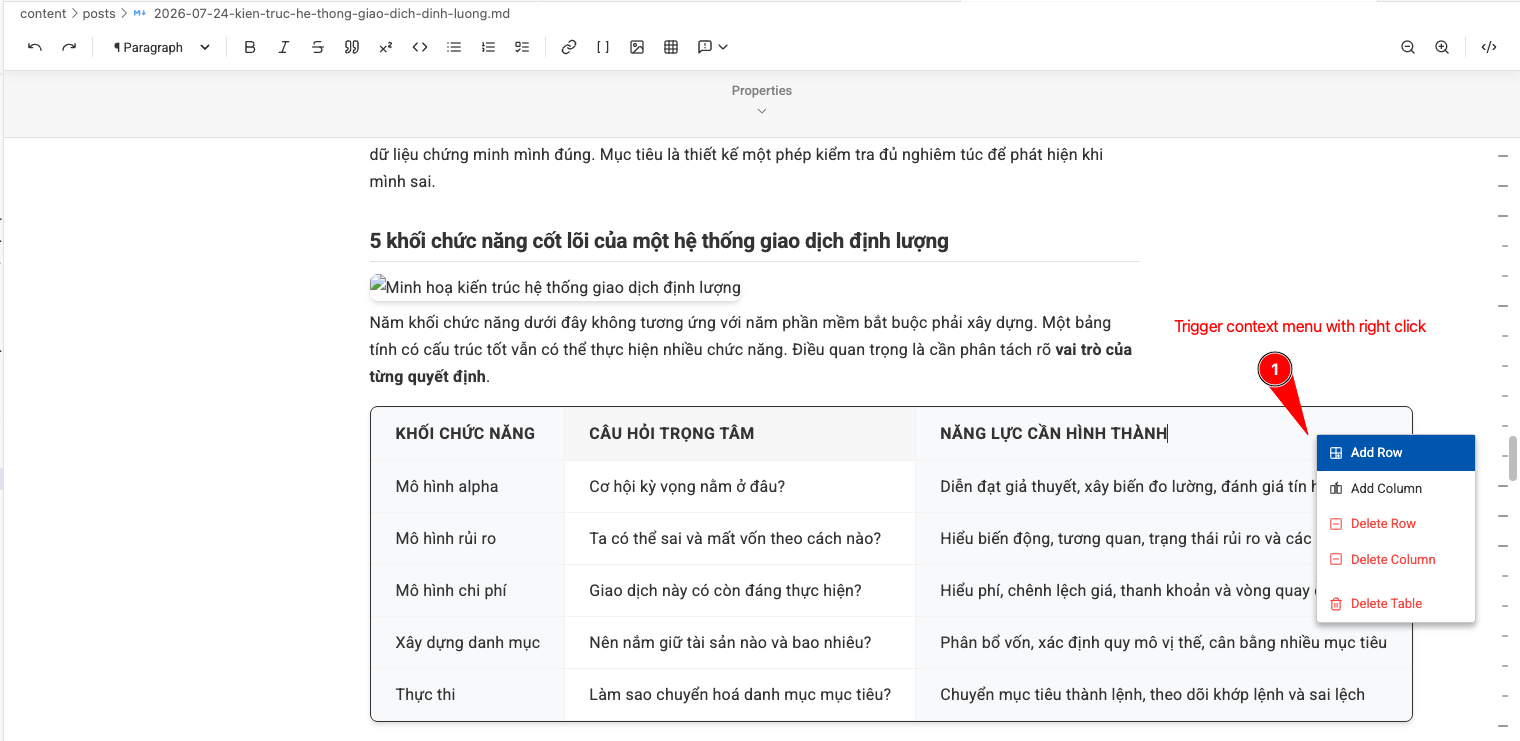
- Advanced Tables: Manage Markdown tables effortlessly via an intuitive right-click context menu to add/remove rows/columns, or insert custom dimensions directly from the toolbar.
📸 View Context Menu for Table Editting
- Mermaid & HTML Rendering: Natively render complex Mermaid charts/diagrams on the fly and support custom inline HTML blocks for ultimate flexibility.
- GitHub-Flavored Elements: Native support for GFM, admonitions (beautiful rich-text alerts for Notes, Tips, Warnings, Cautions, and Important callouts), footnotes, and elegant hashtag rendering (
#tag).
Frictionless UX
-
Comprehensive Interactive Toolbar: A sleek, sticky toolbar packed with essential formatting tools. Instantly apply formatting with a single click.
📸 View Toolbar
-
Auto-Save & Auto-Refresh: Your notes are reliably saved as you write. The live editor also updates on the fly whenever you tweak fonts, UI languages, or image paths—no manual reloads required.
-
Configurable Typography: Switch between a modern
sans-serifdefault or an immersiveserif(Substack-style) font via VS Code settings.

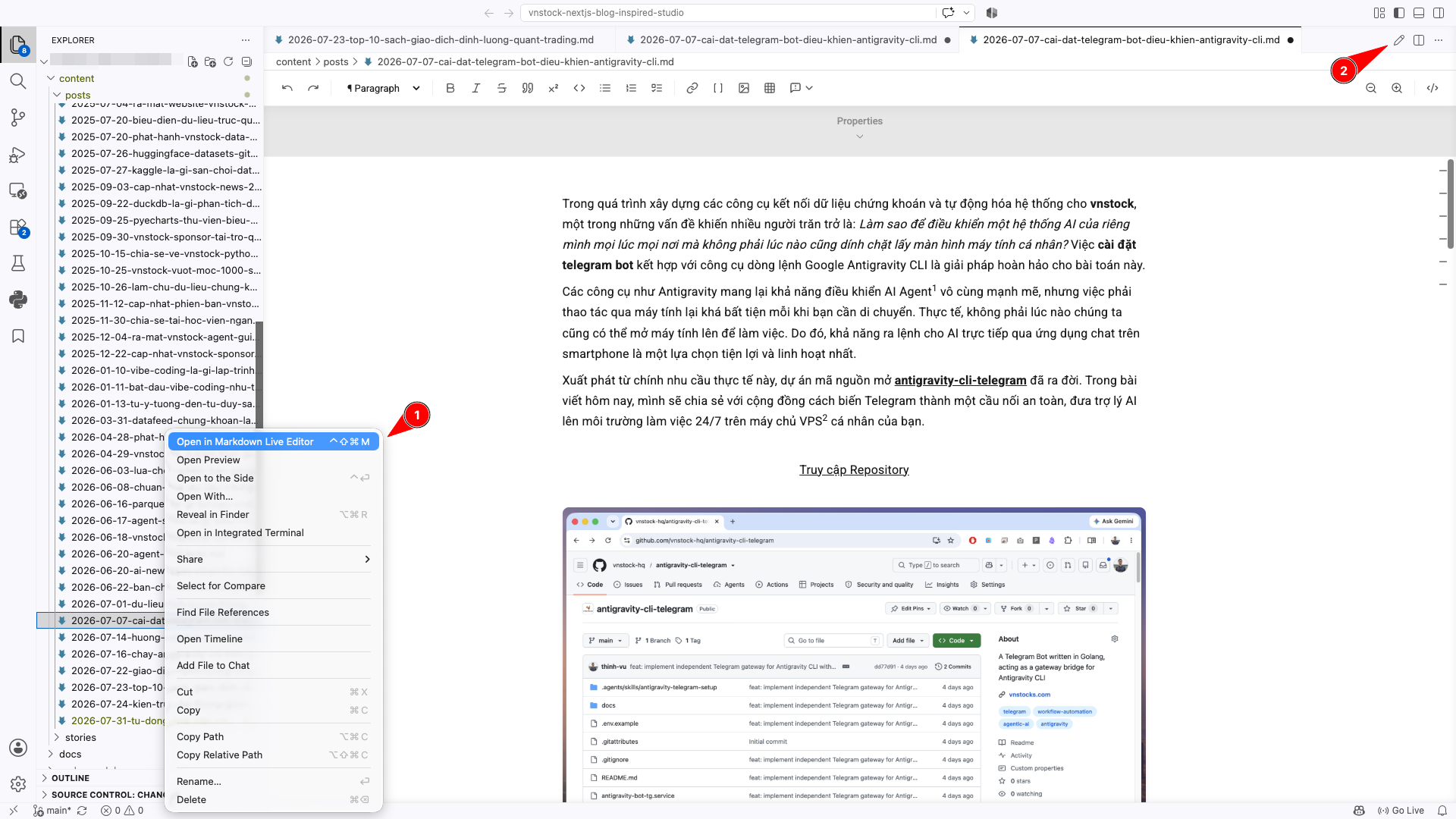
There are 3 ways to launch the Live Editor:
- Use the keyboard shortcut
Cmd + Option + Shift + M(orCtrl + Alt + Shift + Mon Windows/Linux). - Right-click any
.mdfile in the Explorer and select "Open in Markdown Live Editor". - Click the Edit (pencil) icon in the top right corner of the active raw text view.
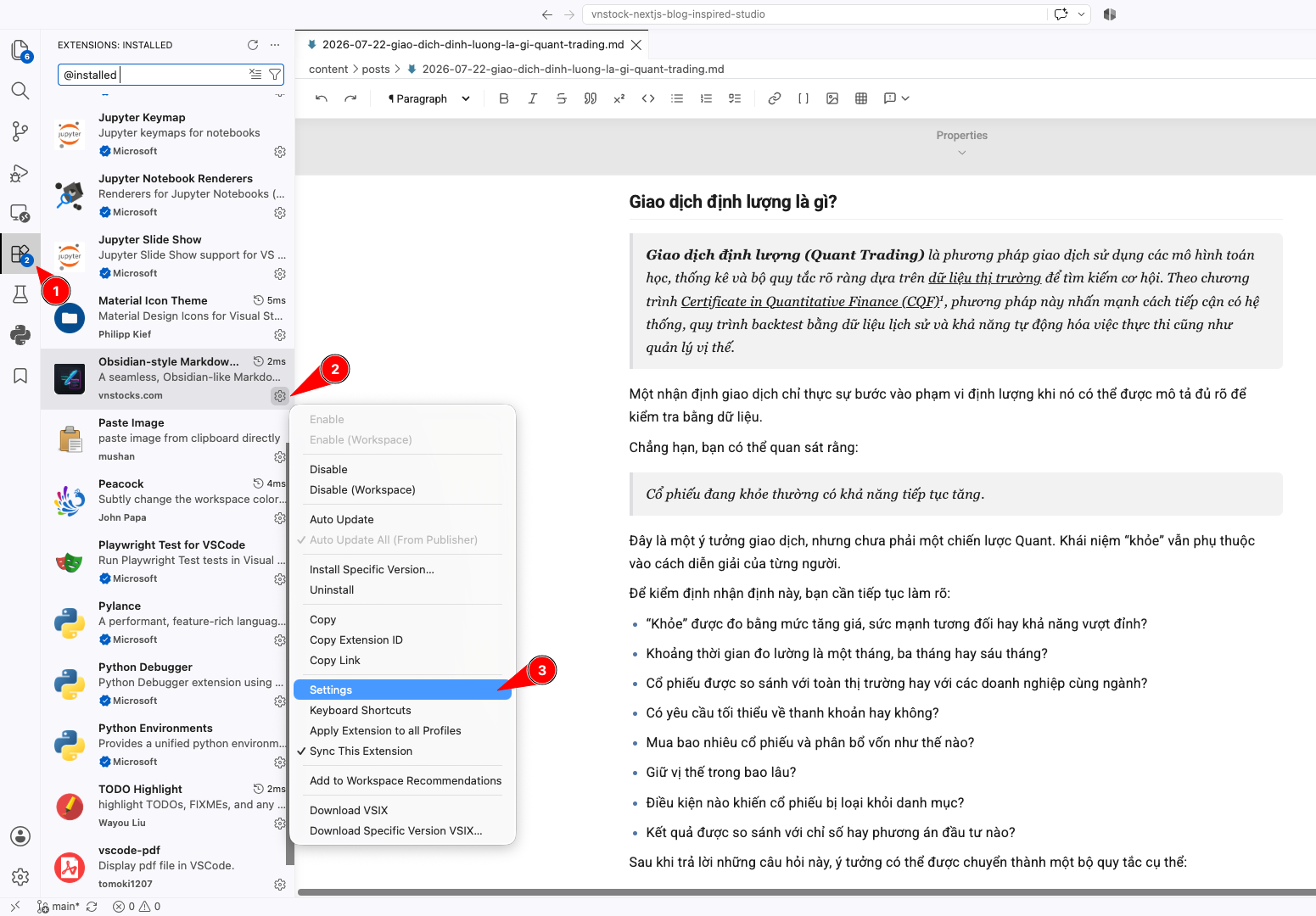
The extension comes with several customization options available in your VS Code settings, such as UI language, typography fonts, image paths, and Slash Command toggles.
| Command | Mac | Windows/Linux |
|---|---|---|
| Open Live Editor | Cmd + Ctrl + Shift + M |
Ctrl + Alt + Shift + M |
| Send to AI Context | Cmd + Shift + L |
Ctrl + Shift + L |
| Insert Link | Cmd + K |
Ctrl + K |
| Insert Table | Cmd + Option + T |
Ctrl + Shift + T |
| Insert Code Block | Cmd + Option + C |
Ctrl + Shift + C |
| Toggle Bold | Cmd + Option + B |
Ctrl + Shift + B |
| Toggle Italic | Cmd + I |
Ctrl + I |
| Insert Heading 1-6 | Cmd + Option + 1-6 |
Ctrl + Shift + 1-6 |
- Author: Thinh Vu
- Project Ecosystem: Brought to you by Vnstock.
- Open Source Foundations: Built on top of the amazing Milkdown and CodeMirror 6.
Crafted for developers, researchers, and writers who demand an elegant, unified workspace.