


Jump to: Quick start · Everyday workflow (composing prompts, reading output, sessions, shortcuts) · Advanced · Development
pi-coding-agent is an Emacs frontend for Pi. The Pi CLI still runs
the agent, talks to models, and executes tools. This package wraps Pi
in an ergonomic Emacs interface: a Markdown chat buffer for the
conversation and a separate prompt buffer where you compose the next
message.
The main advantage may be that your prompt is no longer trapped in a terminal text box. You can edit it like any other Emacs buffer, scroll through the chat without losing focus, navigate and copy from previous output with ease, and use the key bindings and editing habits you already have.
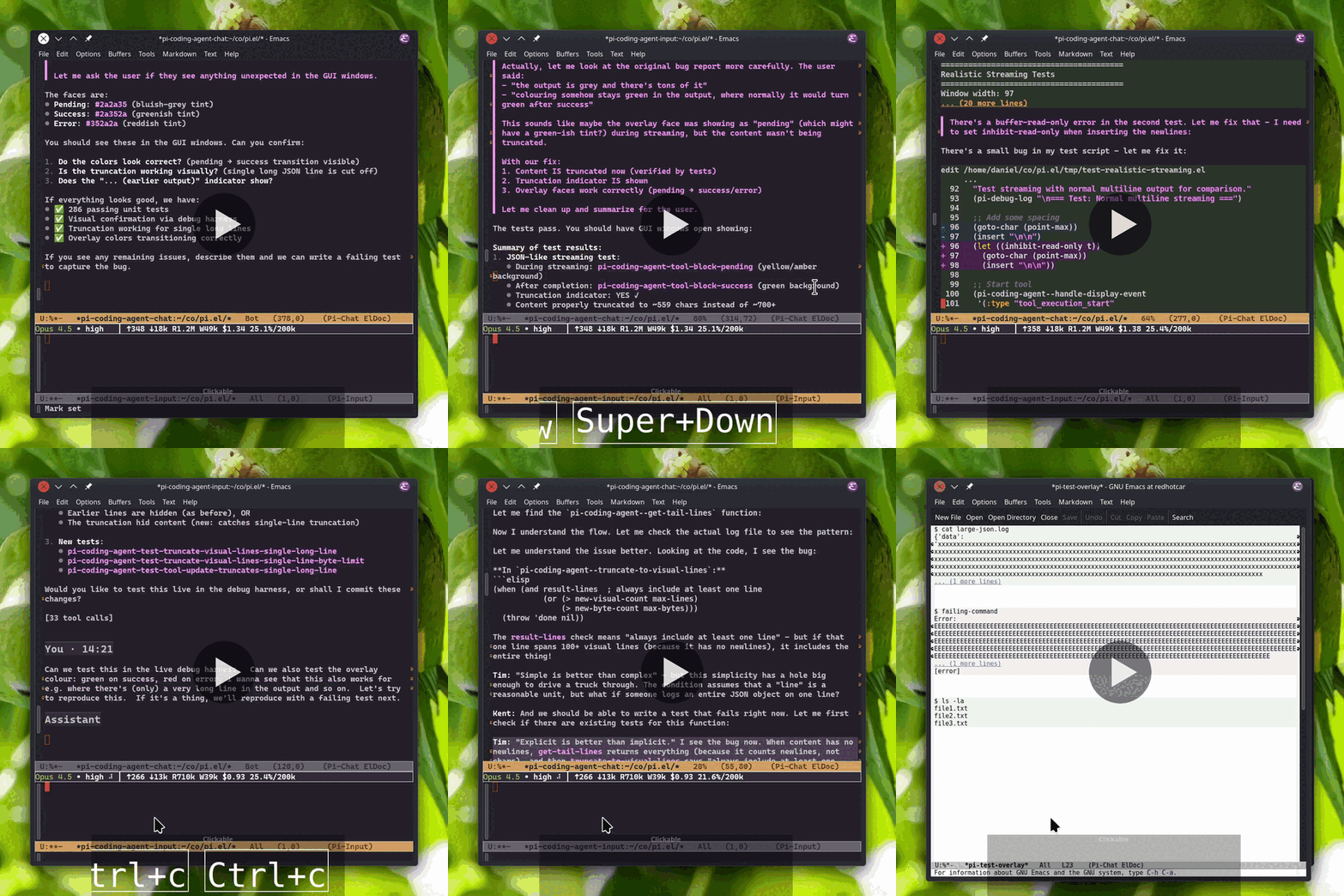
If you already have Emacs 29.1 or later with tree-sitter support, this is the shortest path to a usable session.
- Emacs 29.1 or later, built with tree-sitter support
- Node.js 22.19 or later for the pi CLI
- pi coding agent
@earendil-works/pi-coding-agent@0.79.1or later, installed and inPATH - Pi CLI authentication via
pi --login, or provider API keys configured for pi - A C compiler if Emacs needs to compile tree-sitter grammars
# Install the pi CLI
npm install -g @earendil-works/pi-coding-agent

# Or with mise
mise use -g npm:@earendil-works/pi-coding-agent@latest

# Authenticate the CLI
pi --login
If you prefer not to use OAuth, configure the provider API keys supported by Pi instead.
Install from MELPA:
M-x package-install RET pi-coding-agent RET
Then start a session:
M-x pi-coding-agent
On first start, pi-coding-agent may prompt to install the
tree-sitter grammars needed for Markdown rendering. Say yes if you
want the chat buffer to render properly. Grammar installation is a
one-time step and requires a C compiler (gcc or cc).
You may also define a shorter command name:
(defalias 'pi 'pi-coding-agent)After that, M-x pi starts or focuses the current project’s pi
session.
Make sure the Pi CLI is authenticated before expecting models to
appear, either via pi --login or by configuring API keys.
pi-coding-agent runs the command in pi-coding-agent-executable,
which defaults to ("pi"). If Emacs cannot find pi, install the
CLI with the npm command from Quick Start, adjust Emacs’s exec-path,
or customize pi-coding-agent-executable. An example:
;; npx users:
(setopt pi-coding-agent-executable
'("npx" "-y" "@earendil-works/pi-coding-agent@latest"))Pi does not show its project trust prompt in RPC mode. To make Emacs
sessions behave like the usual trusted project workflow,
pi-coding-agent passes --approve by default so project-local
.pi prompts, skills, settings, themes, and extensions are active.
Set pi-coding-agent-project-trust-policy to default to pass no
trust flag and let Pi use its saved trust decisions and
defaultProjectTrust:
;; Let Pi decide project trust from ~/.pi/agent/trust.json
;; and its global defaultProjectTrust setting.
(setopt pi-coding-agent-project-trust-policy 'default)
Set it to no-approve to pass --no-approve and ignore
project-local Pi files for Emacs sessions.
Grammar installation needs a working C compiler. Install gcc or
cc, then run:
M-x
  pi-coding-agent-install-grammars
If an old system Markdown grammar is loaded and tables render
incorrectly, remove the old libtree-sitter-markdown from
treesit-extra-load-path, your Emacs tree-sitter directory, or your
system packages, then restart Emacs or run M-x
pi-coding-agent-install-grammars.
Emacs may load its bundled transient before the newer MELPA package.
If the menu complains about transient, set
package-install-upgrade-built-in to t, install or upgrade
transient from MELPA, and restart Emacs.
Start a session with M-x pi-coding-agent. pi-coding-agent opens
two windows:
- Chat buffer at the top: rendered Markdown conversation history, tool output, thinking blocks, and previous turns.
- Input buffer at the bottom: a normal Emacs buffer where you write the next prompt.
The input header line shows the current model, thinking level, activity phase, cost and context usage, session name, and extension status when available. The model and thinking fields can be clicked to change their values.
Type in the input buffer and press C-c C-c to send. If Pi is
already working, C-c C-c queues the text as a follow-up and sends it
when the current turn finishes. Press C-c C-s while Pi is busy to
send a steering message: it is delivered after the current tool call
and interrupts the remaining queued tools. Press C-c C-k to abort a
streaming response.
Press C-c C-p for the transient menu which allows you to
conveniently discover commands and shortcuts for model selection,
thinking level, sessions, fork, compact, export, stats, skills and
custom commands.
The input buffer is intentionally boring Emacs. Write multi-line prompts, paste from other buffers, use the kill ring, keyboard macros, registers, spell checks, Evil, or whatever else your setup already gives you. Your prompt stays in the bottom window while the conversation streams above it.
Slash commands work with completion: type / then TAB to complete
built-in commands and pi commands such as prompt templates, skills,
and extension commands. Prompt templates are discovered from places
such as ~/.pi/agent/prompts/, and skills from ~/.agents/skills/.
File references also complete: use TAB on paths such as ./, ../,
and ~/. Absolute paths complete too, except for a bare / at the
start of the buffer, where slash-command completion wins.
While composing, you can page through the chat without moving focus
out of the input buffer. Use M+PageDown and M+PageUp to scroll
the linked chat window (also known as M-<next> and M-<prior>). If
your terminal does not send those keys, C-M-v and C-M-S-v are the
traditional Emacs fallbacks.
The chat buffer is rendered as Markdown and uses tree-sitter for
syntax highlighting code blocks and diffs. Long tool output is
collapsed to a preview so the chat stays readable; press TAB on a
tool block to expand or collapse it. Long-running commands stream
output live, file operations (read, write, edit) get syntax
highlighting, and edit diffs highlight what changed.
Markdown pipe tables get a display-only treatment: wide tables are wrapped and drawn to neatly fit window width, with cleaner separators, while the underlying buffer text remains ordinary Markdown.
Output from file tools such as read, write, and edit, and custom
tools that include :path allow that RET on a file-content line
opens the backing file at the matching line. By default the file
opens in the other window so the chat stays visible; use C-u RET to
open it in the same window instead.
Press TAB on a turn header (You or Assistant) to fold or unfold
that turn. Use n and p in the chat buffer to jump between user
messages, and f to fork the conversation from the turn at point.
Each project directory gets its own session automatically. Running
M-x pi-coding-agent again from a Pi buffer restores missing panes;
if both panes are visible, focus moves to the input window. Use M-x
pi-coding-agent-toggle to hide or show the session windows in the
current frame.
For multiple sessions in the same directory, use C-u M-x
pi-coding-agent and enter a session name. Resume (C-c C-r) and
fork (C-c C-p f) present a selection menu. Compact (C-c C-p c)
summarizes older conversation when the context window gets full; Pi
can also compact automatically when needed. The header line shows
context usage and changes face when it crosses the configured warning
and error thresholds.
| Key | Context | Description |
|---|---|---|
C-c C-c | input | 📮 Send prompt, or queue follow-up if busy |
C-c C-s | input | 🐎 Send steering message while Pi is busy |
C-c C-k | input | 🪓 Abort streaming |
C-c C-p | input | 🎛️ Open transient menu |
C-c C-r | input | 📼 Resume a previous session |
M-p / M-n | input | 🕰️ Prompt history (C-↑ / C-↓ also work) |
C-r | input | 🕵️ Incremental prompt-history search |
TAB | input | 🪄 Complete paths, and / commands |
M+<prior/next> | input | 🛗 Scroll linked chat window |
TAB | chat | 🪗 Toggle thinking block, tool block, or turn |
RET | chat | 🎯 Visit file at point from tool output |
n / p | chat | 🐾 Navigate user messages |
f | chat | 🌿 Fork from the turn at point |
q | chat | 👋 Quit session |
This section is for more advanced usage, including changing defaults,
managing grammars yourself, using extension features, or integrating
pi-coding-agent into the rest of your Emacs setup.
Here’s some common non-default preferences:
;; Collapse completed thinking in new chats; live thinking still streams:
(setopt pi-coding-agent-thinking-display 'hidden)

;; Make the input pane 25% of the Pi window pair; rebalanced on frame resize:
(setopt pi-coding-agent-input-window-height 0.25)

;; Copy source Markdown from the chat buffer instead of only visible text:
(setopt pi-coding-agent-copy-raw-markdown t)

;; Open files from tool output in the current window instead of another window:
(setopt pi-coding-agent-visit-file-other-window nil)
Less common tuning knobs:
;; New input buffers use plain text instead of Markdown highlighting:
;; (setopt pi-coding-agent-input-markdown-highlighting nil)

;; Show more tool output before it collapses, counted in visual lines:
;; (setopt pi-coding-agent-tool-preview-lines 20)
;; (setopt pi-coding-agent-bash-preview-lines 10)

;; Lower context warning/error colors in the header line:
;; (setopt pi-coding-agent-context-warning-threshold 40)
;; (setopt pi-coding-agent-context-error-threshold 60)

;; Keep more recent turns live for table rewrapping and tool overlays:
;; Older history is cooled to keep long sessions fast.
;; (setopt pi-coding-agent-hot-tail-turn-count 5)

;; Let Pi's saved project trust decisions decide whether .pi resources load:
;; (setopt pi-coding-agent-project-trust-policy 'default)

;; Hidden thinking uses generic line-count stubs instead of first-line previews:
;; (setopt pi-coding-agent-thinking-hidden-preview nil)
You can also inspect the whole customization group with:
M-x customize-group RET pi-coding-agent RET
New chat buffers inherit pi-coding-agent-thinking-display. The
default is visible: live thinking streams while the assistant is
working and remains expanded when that thinking block finishes. Use
C-c C-p h to change the current chat, or C-c C-p H to change the
default for future chat buffers in the current Emacs session. To make
that default persist across restarts, set
pi-coding-agent-thinking-display in your init file or via M-x
customize-option.
Press TAB inside completed thinking to toggle that block locally.
Pipe tables in the chat buffer are beautified as a display-only view.
Recent tables re-wrap automatically when the chat window width
changes. Older history stays frozen at its previous width to avoid
expensive whole-buffer redisplay on every resize. Tool blocks in
older history also lose their expand/collapse buttons and syntax
highlighting, keeping long sessions snappy. Customize
pi-coding-agent-hot-tail-turn-count to choose how many recent
You=/=Assistant turns stay live.
To open an existing Pi JSONL session file directly, run:
M-x pi-coding-agent-open-session-file
This opens the file as a live Pi session in the normal chat/input UI,
not as a static viewer. In Dired, it defaults the prompt to the
regular file at point. From a buffer visiting a local readable
.jsonl file, it defaults to that file.
You can save the chat buffer like any other buffer to keep a Markdown
transcript on disk. Saving does not interrupt or replace the live Pi
session. For a shareable export, use HTML export from the menu (C-c
C-p e) or run /export.
The pi-coding-agent Emacs frontend has basic support for Pi
extensions. Extension commands show up in slash completion and the
transient menu, extension tools run normally, and extensions can use
notifications, confirm/select/input prompts, prefill the input buffer,
and show status text.
Rich TUI-specific extension UI is not supported in Emacs yet: custom
widgets, custom editor components, custom headers/footers, and other
component-based views are unavailable or fall back. Hover extension
status text in the header line to see the exact statusKey, which you
can use to change the font for that extension’s status text using
pi-coding-agent-extension-status-faces.
pi-coding-agent uses Emacs’s built-in tree-sitter support to render
Markdown and highlight code blocks in the chat and input buffers. The
two essential grammars are markdown and markdown-inline. Optional
grammars such as python, javascript, rust, and go improve
syntax highlighting inside code blocks.
On first session start, pi-coding-agent prompts to install the
essential grammars. If you decline that prompt, it appears again next
time until the grammars are installed or you change
pi-coding-agent-essential-grammar-action. A separate optional
prompt offers additional grammars for syntax highlighting inside code
blocks. Declining the optional prompt is remembered and it appears
again only if new grammar recipes are added or you clear
pi-coding-agent-grammar-declined-set.
To check which grammars are installed or install them later:
M-x pi-coding-agent-install-grammars
If you manage tree-sitter grammars outside of Emacs, for example
through a system package manager, set
pi-coding-agent-essential-grammar-action to warn to suppress the
essential grammar prompt:
(setopt pi-coding-agent-essential-grammar-action 'warn)
For custom UI changes tied to activity, add functions to
pi-coding-agent-activity-phase-functions. Each function receives:
(CHAT-BUFFER INPUT-BUFFER OLD-PHASE NEW-PHASE REASON)NEW-PHASE is one of "thinking", "replying", "running", "compact", or
"idle". REASON explains why the phase was applied:
| Reason | Meaning |
|---|---|
phase-change | The session activity phase changed. |
reset | A session reset forced "idle". |
teardown | Session teardown forced "idle". |
input-link | A newly linked input should apply the phase. |
input-unlink | An old input should clean up local UI state. |
Handlers should be idempotent. pi-coding-agent may reapply the same
phase when buffers are relinked, reset, or torn down. INPUT-BUFFER
may also be nil or dead during teardown.
As an example, consider tinting the input buffer while the session is busy:
(defvar-local my-pi-input-tint-cookie nil)

(defun my-pi-tint-input-while-busy (_chat input _old new _reason)
  (when (buffer-live-p input)
    (with-current-buffer input
      (when my-pi-input-tint-cookie
        (face-remap-remove-relative my-pi-input-tint-cookie)
        (setq my-pi-input-tint-cookie nil))
      (unless (string= new "idle")
        (setq my-pi-input-tint-cookie
              (face-remap-add-relative
               'default :background "gray20"))))))

(add-hook 'pi-coding-agent-activity-phase-functions
          #'my-pi-tint-input-while-busy)
Another example: Notify when a real session turn finishes. The
REASON check matters: input relink cleanup also applies "idle" to
the old input, but that does not mean Pi finished working.
(defun my-pi-message-when-done (chat _input old new reason)
  (when (and (eq reason 'phase-change)
             (not (string= old "idle"))
             (string= new "idle"))
    (message "Pi finished in %s" (buffer-name chat))))

(add-hook 'pi-coding-agent-activity-phase-functions
          #'my-pi-message-when-done)
Track busy sessions for your own mode-line or tab display:
(defvar my-pi-busy-sessions nil)

(defun my-pi-track-busy-sessions (chat _input _old new reason)
  (when (memq reason '(phase-change reset teardown))
    (setq my-pi-busy-sessions (delq chat my-pi-busy-sessions))
    (unless (string= new "idle")
      (push chat my-pi-busy-sessions))
    (force-mode-line-update t)))

(add-hook 'pi-coding-agent-activity-phase-functions
#'my-pi-track-busy-sessions)MELPA installs transient, md-ts-mode, and markdown-table-wrap
automatically. pi-coding-agent uses md-ts-mode only for its own
chat and input buffers, so installing or loading this package does not
change how unrelated .md files open. If you want tree-sitter
Markdown globally, configure md-ts-mode separately.
With use-package:
(use-package pi-coding-agent
  :ensure t
  :init (defalias 'pi 'pi-coding-agent))
If you do not have MELPA configured, add it to your init file first:
(require 'package)
(add-to-list 'package-archives '("melpa" . "https://melpa.org/packages/") t)
(package-initialize)
For a plain Git checkout, configure MELPA first, then evaluate this once to install the external dependencies:
(require 'package)
(add-to-list 'package-archives '("melpa" . "https://melpa.org/packages/") t)
(package-initialize)

;; Must be set before installing/upgrading Emacs's bundled transient.
(setq package-install-upgrade-built-in t)

;; Refresh once after adding MELPA.
(package-refresh-contents)

(package-install 'transient)
(package-install 'md-ts-mode)
(package-install 'markdown-table-wrap)
The package-install-upgrade-built-in setting upgrades Emacs’s
bundled transient when needed.
Then clone the repository and add it to your load path:
git clone https://github.com/dnouri/pi-coding-agent ~/.emacs.d/site-lisp/pi-coding-agent(require 'package)
(package-initialize)
(add-to-list 'load-path "~/.emacs.d/site-lisp/pi-coding-agent")
(require 'pi-coding-agent)Or with use-package after installing the dependencies above:
(use-package pi-coding-agent
  :load-path "~/.emacs.d/site-lisp/pi-coding-agent"
  :init (defalias 'pi 'pi-coding-agent))
If you prefer not to install the Pi CLI globally, customize
pi-coding-agent-executable. For example:
(setq pi-coding-agent-executable
'("npx" "-y" "@earendil-works/pi-coding-agent@0.79.1"))Most users can skip this section. It is for contributors and local package development.
The shared integration tests have two lanes:
- a fast fake-pi lane for deterministic RPC-boundary checks
- a real pi lane for backend compatibility coverage
The default local integration target runs the fake lane first and the real lane second, so it still needs Docker for the real lane. The GUI suite is fully fake-backed and does not need Docker or a local pi install.
# Byte-compile, lint, and unit tests
make check

# Shared integration contract: fake first, then real
make test-integration

# Fast integration lane against the fake-pi harness only (no Docker, no pi install)
make test-integration-fake

# Real pi lane only; starts the project-local Ollama Docker container
make test-integration-real

# Run a single integration contract by selector
make test-integration-fake SELECTOR=rpc-smoke
make test-integration-real SELECTOR=steering-contract

# Deterministic GUI tests (fake-backed, no Docker or local pi install)
make test-gui

# Run one GUI regression by selector
make test-gui SELECTOR=tool-overlay-bounded

# All tests
make test-allRun the harness directly when debugging the subprocess contract itself. These commands start an interactive JSONL peer on stdin/stdout.
# Basic prompt lifecycle scenario
uv run --script test/support/fake_pi.py --scenario prompt-lifecycle

# Extension dialog scenario with a longer manual timeout
./test/support/fake_pi.py --scenario extension-confirm --extension-timeout-ms 10000
Scenario fixtures live under test/fixtures/fake-pi/.
The GUI suite is deterministic and fake-backed. By default it auto-detects whether to show a window or run headless.
# With a display available, runs with visible window
./test/run-gui-tests.sh

# Run one visible regression directly
./test/run-gui-tests.sh pi-coding-agent-gui-test-scroll-auto-when-at-end

# Force headless even with display available
./test/run-gui-tests.sh --headlessGitHub Actions runs on every push:
test-unit.yml- Unit tests across Emacs 29.4, 30.1, and snapshot (31)lint.yml- Byte-compile, checkdoc, and package-lint across Emacs 29.4, 30.1, and snapshottest-integration.yml- Split fake/real integration jobs; fake stays fast, real keeps Ollama compatibility coveragetest-gui.yml- Deterministic fake-backed GUI tests with xvfb virtual framebuffer
The real integration workflows use Node 24. Nightly builds keep real integration coverage against the pinned pi version (from Makefile) and latest, while the fake-backed GUI suite runs once.
- pi.dev: pi coding agent home page
GPL-3.0-or-later. See LICENSE.