Model Context Protocol (MCP) Self-Service Catalog & Config Generator
mcprack is a centralized platform for managing and distributing MCP (Model Context Protocol) server configurations across your organization. It solves the problem of how to securely provision AI clients (Claude Desktop, GitHub Copilot, and other MCP-compatible tools) with access to multiple backend services — without hardcoding secrets or requiring manual configuration on each machine.
You have multiple MCP servers (tools that connect AI clients to your services: databases, APIs, knowledge bases, etc.). You want users to:
- Easily discover which servers are available
- Self-serve which ones they need
- Get a ready-to-use config file for their client
- Have credentials managed securely without access to raw secrets
mcprack provides:
- Admin UI — Register MCP servers once, define environment variables and defaults, store secrets in Vaultwarden
- User Catalog — Browse available servers, select which ones you need, choose your target client (Claude, Copilot, etc.)
- Config Generator — Automatically builds a
.jsonor.envconfig file tailored to each user with their chosen servers - Credential Management — Credentials never stored in mcprack's DB; every secret lives in Vaultwarden (optional override per user)
- HTTP Proxy (optional) — Expose stdio-based MCP servers over HTTP so remote clients can access them
-
Admin registers a new server (e.g.,
mastodon-mcp):- Command:
/usr/bin/mastodon-mcp - Environment variables:
MASTODON_INSTANCE,MASTODON_ACCESS_TOKEN - Saves defaults in Vaultwarden secure note:
MCP-mastodon-mcp
- Command:
-
User logs into mcprack (local account or Active Directory):
- Sees available servers in the catalog
- Selects which ones they need: ✓ mastodon-mcp, ✓ postgres-mcp
- Chooses target: "Claude Desktop"
- Downloads
claude_desktop_config.jsonwith only those servers
-
AI Client (Claude) loads the config:
- Starts each selected MCP server as a subprocess
- Can now call functions and access tools from all those backends
Credentials are never exposed to the user or stored insecurely — they come from Vaultwarden at runtime.
Local accounts are always available. LDAP/Active Directory is optional and disabled by default — enable it during installation if you want users to authenticate with AD credentials instead.
- Per-server environment configuration — Store API keys, connection strings, and other secrets in Vaultwarden, not in config files
- User-level credential override — Users can optionally provide their own credentials for any server (stored as
MCP-<server>-user-<username>in Vaultwarden) - Multi-client support — Generate configs for Claude Desktop, GitHub Copilot, and other MCP-compatible clients
- HTTP proxy for remote access — Expose stdio servers over HTTP so users on different machines can access them (via FastMCP)
- Vaultwarden integration — Leverages the same
bw-cli/ Secure Note pattern used by themcp_rackAnsible role - LDAP/AD support — Optional directory authentication for enterprise deployments
┌─────────────────────────────────────────────────────────────┐
│                    mcprack Web App (Flask)                  │
│  • Admin UI (register servers, manage credentials)          │
│  • User Catalog (browse, select, download config)           │
│  • Config Generator (build Claude/Copilot JSON/ENV)         │
└────────────┬────────────────────────────┬───────────────────┘
             │                            │
      [SQLite/PG/MySQL]       [Vaultwarden (via bw-cli)]
      • Server registry        • Secure credentials
      • User accounts          • Environment variables
      • Server selections      • User overrides
             │                            │
             └────────────┬───────────────┘
                          │
                    (user downloads)
                          │
        ┌─────────────────┴──────────────────┐
        │                                    │
   [Local Config]                  [Remote Config]
   • claude_desktop_config.json    • HTTP reference
   • Stdio servers listed          • FastMCP proxy
   • Run on local machine          • HTTP://proxy:3100/mcp/
Components:
- Flask App: Core web service, handles auth, server management, config generation
- Database: Stores server registry, users, and selections (SQLite, PostgreSQL, or MySQL)
- Vaultwarden: Stores all credentials and secrets (never in mcprack's DB)
- FastMCP Proxy (optional): HTTP gateway for remote clients to access stdio servers
Scenario 1: Team with shared MCP servers
- Your team has built MCP servers for PostgreSQL, internal APIs, Slack, Jira, etc.
- Developers use Claude Desktop or GitHub Copilot on their own machines
- They need access to different subsets of these servers based on their role
- Solution: Deploy mcprack once, register each server, let users self-serve their configs
Scenario 2: Enterprise deployment
- Multiple teams, each with different access controls
- Need to integrate with Active Directory for SSO
- Credentials managed centrally in Vaultwarden
- Solution: mcprack with LDAP enabled, per-team server configurations
Scenario 3: Remote teams across NAT
- MCP servers hosted on internal network (10.11.x.x)
- Users on different networks/VPNs need to access them
- Solution: Deploy FastMCP proxy on public-facing machine, mcprack generates HTTP config for remote clients
Scenario 4: Multi-client support
- Some users prefer Claude Desktop, others use GitHub Copilot
- Different clients have different config formats
- Solution: mcprack generates client-specific configs automatically
Local accounts are always available. LDAP/Active Directory is optional and disabled by default — enable it during installation if you want users to authenticate with AD credentials instead.
python3 -m venv .venv
. .venv/bin/activate
pip install -r requirements.txt -r requirements-dev.txt

cp .env.example .env   # edit as needed
export $(grep -v '^#' .env | xargs)

flask db upgrade
flask create-admin
flask run
Open http://127.0.0.1:5000, log in with the admin account you just created, register a server under Servers, then visit the catalog to select it and download a config.
SQLALCHEMY_DATABASE_URI defaults to SQLite but PostgreSQL
(postgresql+psycopg2://..., needs psycopg2-binary /
python3-psycopg2) and MySQL (mysql+pymysql://..., needs PyMySQL /
python3-pymysql) both work — see requirements-db.txt.
Every credential (a server's default env vars/tokens, and any personal
overrides a user sets) lives in Vaultwarden, never in mcprack's own
database — mcprack talks to it the same way the mcp_rack Ansible role does
(bw-cli, Secure Notes named MCP-<server-name> / MCP-<server-name>-user-<username>,
plain KEY=value lines).
- Log in to the Vaultwarden web vault you want mcprack to use (e.g. the same
instance
mcp_rackalready uses, such ashttps://vaultwarden-dev.proxy.spojenet.cz). - Go to Account Settings → Security → Keys (or API Key) and generate/view the API key. Note the client_id, client_secret, and your account's master password — these three plus the server URL are everything mcprack needs.
Set these four (plus optionally BW_ITEM_PREFIX, default MCP-) in your
environment — .env for local development, /etc/mcprack/env in
production (see debian/README.Debian):
BW_SERVER=https://vaultwarden-dev.proxy.spojenet.cz
BW_CLIENTID=user.xxxxxxxx-xxxx-xxxx-xxxx-xxxxxxxxxxxx
BW_CLIENTSECRET=xxxxxxxxxxxxxxxxxxxxxxxxxxxxxxxx
BW_PASSWORD=your-vaultwarden-account-master-password
BW_BIN (default /usr/bin/bw) and BITWARDENCLI_APPDATA_DIR (where bw
keeps its login/session state) rarely need changing from their defaults.
Log in as an admin and open Vaultwarden diagnostics in the nav bar (or
go straight to /admin/vaultwarden/wizard). It checks each prerequisite in
order — bw installed, BW_SERVER set and reachable, API key valid,
master password unlocks the vault — and stops at the first failing step
with a specific fix, instead of just showing bw's raw error text. Re-run it
after editing /etc/mcprack/env (no service restart needed — the wizard
always checks live).
Once every step is green, admins can save server credentials (they're
written straight to a MCP-<server-name> Secure Note) and users can
download/view configs (which read those notes back and merge in any
personal override).
pytestSee debian/ — builds a .deb following the same conventions as other
VitexSoftware Flask apps (e.g. abraflexi-yearend): system Python packages,
no virtualenv, gunicorn + systemd. See debian/README.Debian for the
post-install configuration steps.
If users run Claude or Copilot on a different machine than the one hosting
your MCP servers, you need to expose stdio-based servers over HTTP. mcprack
includes support for this via fastmcp:
-
Install python3-fastmcp (Debian/Ubuntu):
apt install python3-fastmcp
-
In mcprack admin UI, for each stdio server you want to expose remotely:
- Keep "Command" field filled (e.g.,
/usr/bin/mastodon-mcp) - Add "URL":
http://YOUR-HOST:3100/mcp/ - Set auth header/env key if needed
- Keep "Command" field filled (e.g.,
-
Enable the HTTP proxy service:
systemctl enable --now mcprack-proxy.service -
When users download configs, they'll get network entries pointing to your HTTP proxy instead of local stdio commands.
See debian/README.Debian for full details on the proxy setup.
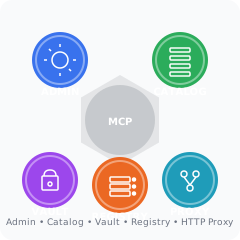
mcprack includes several icon variants to represent the platform's five functional areas:
| Icon | Purpose | Colors |
|---|---|---|
mcprack-app-icon.svg |
App launcher / favicon (256×256) | 2×2 grid: Blue (Admin) / Green (Catalog) / Purple (Vault) / Teal+Orange (Registry/Proxy) |
mcprack-icon-composite.svg |
Hub diagram with labeled functions | Circular design with 5 surrounding functional rings |
mcprack-badge.svg |
Shield badge for documentation | Overlapping colored segments |
mcprack-rings.svg |
Concentric design | Rings around central MCP hub |
mcprack-functions-bar.svg |
Web header / banner | Horizontal stacked bar showing all 5 functions |
All icons are located in static/ and are included in the AppStream metadata for app catalog discovery.
Color scheme:
- 🔵 Blue = Admin Panel (management & configuration)
- 🟢 Green = User Catalog (server selection)
- 🟣 Purple = Vaultwarden Vault (credential storage)
- 🟠 Orange = Server Registry (inventory)
- 🔷 Teal = HTTP Proxy (remote access)