A dark-themed WinForms launcher for Windows 11 system commands. One click runs a diagnostic or maintenance command in its own console window — no more hunting for the right DISM/SFC/netsh incantation or retyping it from memory every time.
145 commands across 9 categories, each with a plain-language description, confirmation prompts on anything state-changing, full history logging, and a 47-assertion self-test that never needs admin rights or opens the UI.
- Overview
- Folder structure: EN vs FRENCH
- Screenshots
- Interface features
- Command catalog
- Command safety model
- Prerequisites
- First run
- Desktop shortcut
- Command-line parameters
- Files written by the script
- Extending the catalog
- Multi-machine deployment
- Troubleshooting
Toolbox-SystemCommands.ps1 is a graphical launcher (WinForms, dark theme) for the day-to-day PowerShell/cmd commands used to diagnose and maintain a Windows 11 machine — disk health, network resets, Windows Update repairs, driver checks, security posture, privacy/telemetry toggles, and more.
Each command runs in its own console window (cmd.exe /k), so you see the raw, unfiltered output exactly as if you'd typed the command yourself — the toolbox doesn't parse, capture, or reinterpret it.
The app self-elevates on launch: since most commands need administrator rights anyway, elevation happens once for the whole session, and every console window it opens afterward inherits that elevation — no repeated UAC prompts per button.
A single companion file ships alongside the script and must stay in the same folder: Commands.psd1, the command catalog (145 commands).
This repository ships two independent, self-contained versions of the toolbox — English and French — each in its own folder, so you never end up mixing a script from one language with the catalog from the other:
| Folder | Contents |
|---|---|
Toolbox-SystemCommands-EN/ |
Toolbox-SystemCommands.ps1 + Commands.psd1 — fully in English: labels, descriptions, help text, and everything printed to the console |
Toolbox-SystemCommands-FRENCH/ |
The French-language script and catalog — same features, same 145 commands, entirely in French |
The two are functionally identical (same catalog, same categories, same self-test count) — only the display language differs. Pick one folder and copy both files it contains together; don't mix a .ps1 from one folder with the Commands.psd1 from the other; the labels and text would end up in two different languages within the same interface. Both versions work equally well on an English- or French-language Windows install — this script only reads/writes the registry and WMI directly, so unlike some other scripts in the suite, nothing here is affected by Windows' own display language.
If you only need one language, you can safely delete the folder you don't need.
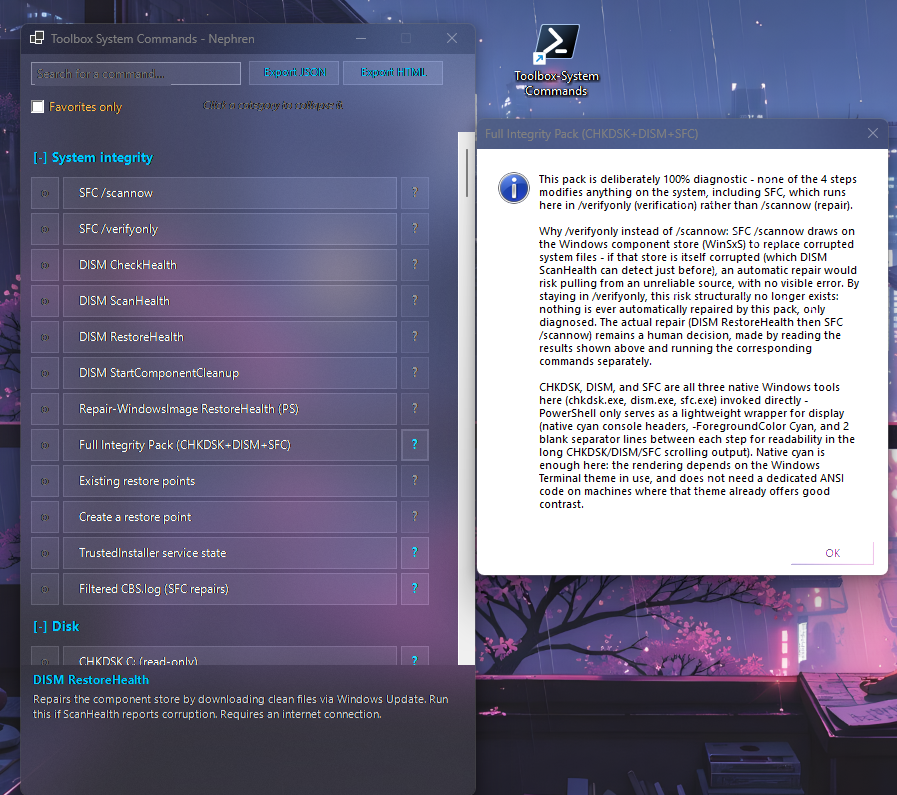
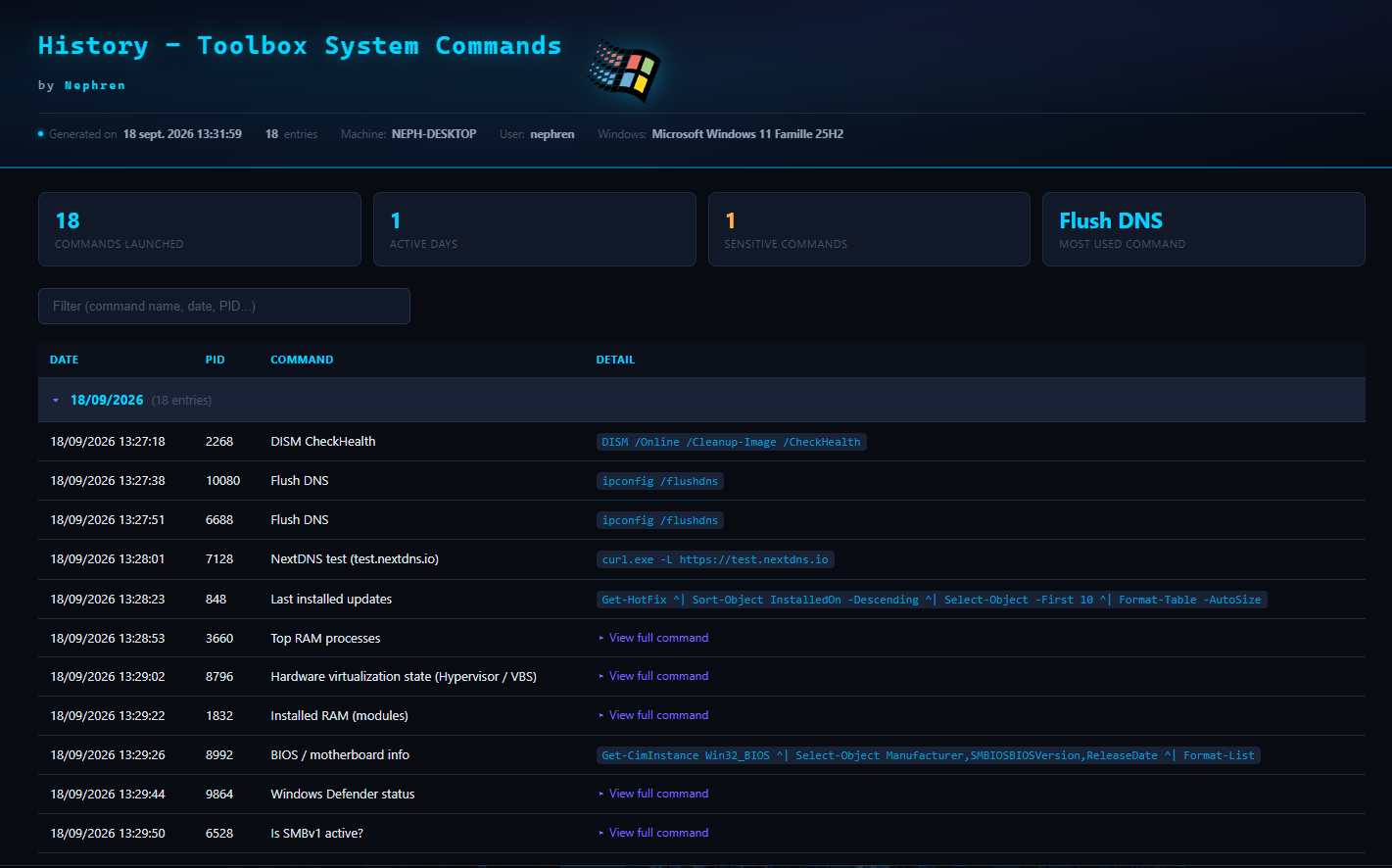
Left: the main window (System integrity category expanded, favorites/search/export bar, fixed description panel) with the Full Integrity Pack's help popup open. Right: the exported HTML history report.
More screenshots (Disk, Windows Update, Performance, Quick security, Privacy/Telemetry, a live virtualization-state check, a live telemetry-services check, and Miscellaneous) are in the screenshots-ENGLISH folder.
| Feature | Detail |
|---|---|
| Collapsible categories | Click a category header to fold/unfold it — useful once the catalog grows past a couple dozen commands |
| Favorites | Click the star next to any command to pin it; persisted in Favorites.txt across sessions; "Favorites only" filter available |
| Search | Ctrl+F jumps straight to the search box; matches against the command's label, description, and help text (not just the visible button label) |
Help button (?) |
Present on every command for layout consistency, but only active (cyan, clickable) on commands that have a Help field — opens a message box with a longer explanation. 81 of 145 commands currently have one |
| Right-click → Copy command | Copies the real underlying command line to the clipboard, in case you'd rather run or inspect it yourself |
| Confirmation prompts | Commands flagged Confirm = $true in the catalog ask Yes/No before launching (see Command safety model) |
| History log | Every launch is timestamped and recorded, with the machine name, user, Windows version, and the PID of the launched process |
| HTML export | One button generates a dark-themed report (visual identity shared with the rest of the maintenance suite) — grouped by day (most recent expanded, older days collapsed), with a live JavaScript filter, stat cards (total commands, active days, sensitive commands run, most-used command), and sensitive commands highlighted in orange |
| JSON export | Same history data as machine-readable JSON |
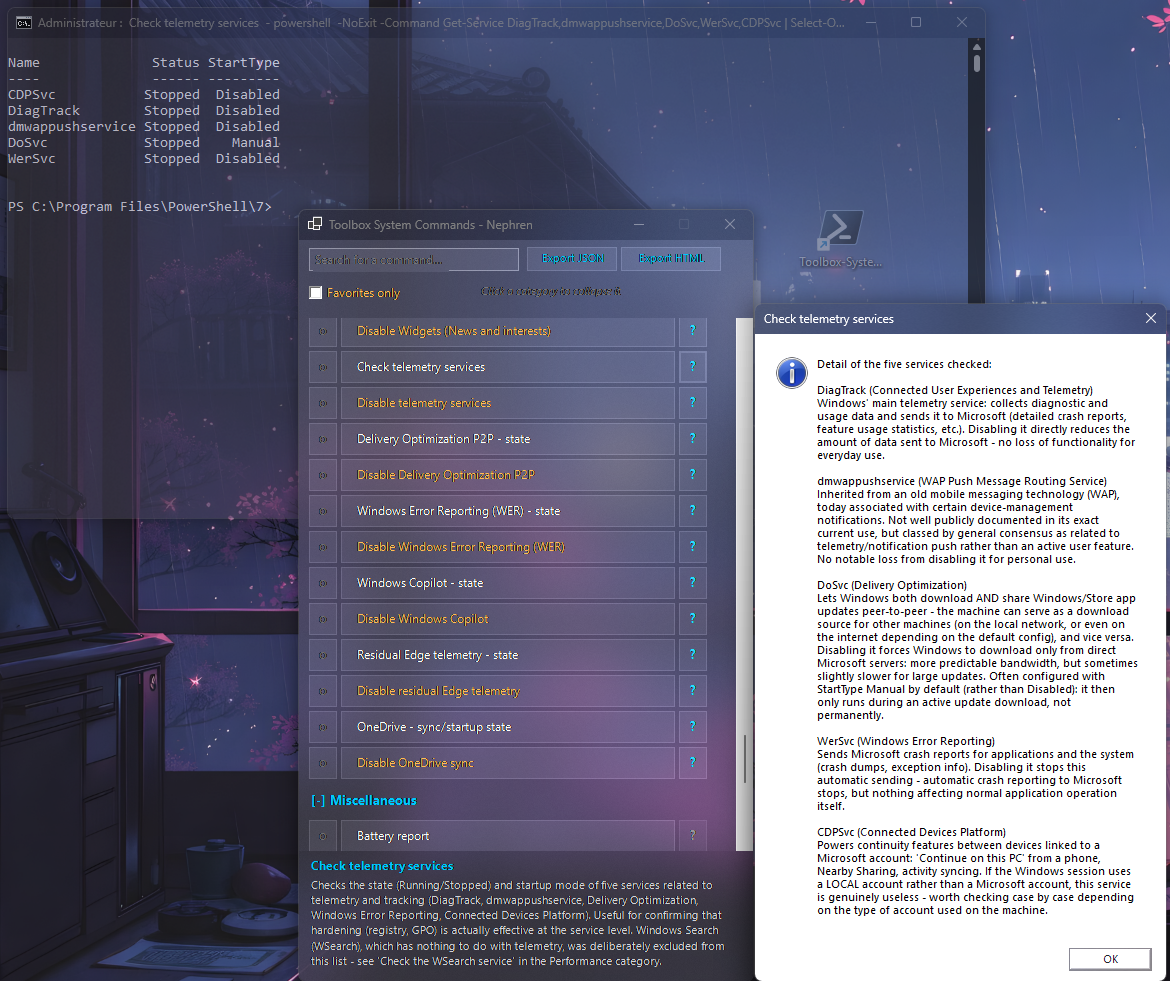
The ? button's help popup, open on "Check telemetry services" — its console output (behind) shows the 5 services it just queried, and the popup breaks down what each one does.
145 commands across 9 categories. Full plain-language description and (for many) an extended help text are shown directly in the app — this table is a map, not a substitute for it.
| Category | Count | Examples |
|---|---|---|
| System integrity | 12 | SFC /scannow, DISM CheckHealth/ScanHealth/RestoreHealth, combined CHKDSK+DISM+SFC pack, restore points |
| Disk | 11 | CHKDSK (read-only and repair variants), SMART status, TRIM verification, real-time disk latency, disk error history |
| Network | 18 | DNS flush, Winsock/TCP-IP reset, IP lease renewal, NextDNS test, Wi-Fi networks/speed, public IP, multi-level connectivity diagnostic, hosts file contents |
| Windows Update | 9 | Component reset, forced scan, Microsoft Store reset, update history, SoftwareDistribution cache size, pending-reboot check |
| Performance | 16 | Startup apps (including scheduled-task-based ones), boot time breakdown, WinSAT score, HVCI/VBS toggles, top RAM/CPU processes, Windows Search service |
| Drivers / Hardware | 12 | Devices in error state, NVIDIA GPU status, BIOS/motherboard info, installed RAM, recently installed drivers, disabled devices |
| Quick security | 22 | Defender status, SMBv1 check, firewall verification, Secure Boot/TPM, BitLocker, failed logon attempts, ASR rules, UAC, Credential Guard, Controlled Folder Access |
| Privacy / Telemetry | 28 | Telemetry level, camera/mic/location access, Advertising ID, Windows Recall, Start menu web search & sponsored suggestions, Copilot, Delivery Optimization, WER, OneDrive sync — most as paired "check status" / "disable" commands |
| Miscellaneous | 17 | Battery report, power diagnostics, DirectX report, Windows activation status, unexpected shutdown history, time sync, installed printers |
- Every command has
Confirm = $trueor$falsein the catalog — there is no "undecided" state; the self-test enforces that this field is always present. - 26 commands currently require confirmation — anything that changes system state, needs a restart, or could disrupt a running session (e.g.
Reset Winsock,Reset TCP/IP stack,CHKDSK C: /f /r (on reboot),Restart PC,Shut down PC, most of the disable-toggles in Privacy / Telemetry). - A dedicated self-test assertion locks in that six specific known-sensitive commands (Winsock reset, TCP/IP stack reset, WU component reset, scheduled CHKDSK, restart, shutdown) always carry
Confirm = $true— a regression there would fail-SelfTestimmediately rather than surface as a silent, un-confirmed destructive action later. - No command uses
wmic(removed starting Windows 11 24H2) — enforced by a dedicated self-test regression check. - The
Cmdfield in the catalog is always single-quoted inCommands.psd1, which structurally prevents PowerShell variable interpolation ($_,$err, etc.) from ever leaking into a command — the root cause of two early bugs (v1.4.3, v1.4.4) that this design eliminates entirely rather than patching case by case. - A handful of commands too complex to survive
cmd.exe's-Commandreconstruction are stored as Base64 (-EncodedCommand, UTF-16LE) instead. Two self-test assertions decode every one of them and verify the resulting script is syntactically valid (via the real PowerShell AST parser) — so a corrupted or truncated Base64 blob is caught by-SelfTestinstead of surfacing as a silent blank console window when someone clicks the button.
- Windows 10 or 11.
- PowerShell 5.1 (built into Windows) — the script targets
#Requires -Version 5.1, so PowerShell 7+ works too. - Administrator rights. The app self-elevates on launch (UAC prompt) — except
-SelfTest, which runs without elevation and never opens the UI. Commands.psd1must be present in the same folder as the script — the app shows a clear error and falls back to an empty catalog rather than crashing if it's missing or invalid.- If the script is digitally signed (recommended in environments using
-ExecutionPolicy AllSigned/RemoteSigned): the signing certificate must be trusted on the target machine.
-
Copy both
Toolbox-SystemCommands.ps1andCommands.psd1— from the same language folder, see Folder structure — to the target machine, in the same folder (e.g.C:\Scripts\Toolbox). The script will not find its commands ifCommands.psd1is left behind. -
Open a PowerShell terminal, then go to the folder that contains both files (adjust the path; keep the quotes if it contains spaces):
cd "$HOME\Downloads" -
Unblock both files if you downloaded them from the Internet. Windows flags downloaded files, and PowerShell's execution policy (
RemoteSigned, for example) refuses to run a flagged script:Unblock-File .\Toolbox-SystemCommands.ps1 Unblock-File .\Commands.psd1
If PowerShell says instead that running scripts is disabled on this system (the Windows default policy is
Restricted), allow scripts for the current account first (the change applies to this account only, not to the whole machine):Set-ExecutionPolicy -Scope CurrentUser -ExecutionPolicy RemoteSigned
Still blocked? See the step-by-step guide.
-
Validate the catalog and internal functions without opening the UI and without admin rights:
.\Toolbox-SystemCommands.ps1 -SelfTest
Runs 47 assertions: catalog structure (every command has a label/command/description/confirm flag, no duplicate labels), known regressions (no unescaped pipes, no
wmic,-EncodedCommandblocks all decode and parse cleanly), the six named sensitive commands all carryConfirm = $true, all required functions are defined, logging/favorites paths are valid, and the elevation check itself works. Exits with code0on full pass,1otherwise. -
Launch the toolbox normally (accept the UAC prompt):
.\Toolbox-SystemCommands.ps1 -
Browse by category, or press
Ctrl+Fand search for what you need (e.g. "DNS", "BitLocker", "telemetry"). -
Click a command. If it's flagged sensitive, confirm the Yes/No prompt. A console window opens and runs it — read its output directly there.
-
Star (⭐) the commands you use often — they'll be quickly filterable afterward without hunting through categories.
-
When you want to review what's been run, use the HTML or JSON export button in the top bar.
Launching the toolbox by right-clicking the .ps1 file and choosing "Run with PowerShell" works, but it briefly flashes a console window and leaves it open behind the GUI. A desktop shortcut avoids both issues and gives you a normal double-click launcher — useful if you expect to use the toolbox regularly.
-
Right-click the Desktop → New → Shortcut.
-
For the location, enter (adjust the script path to wherever you placed it) — pick whichever variant matches what's installed on the machine:
Windows PowerShell 5.1 (built into every Windows install, always available):
powershell.exe -NoProfile -ExecutionPolicy Bypass -WindowStyle Hidden -File "C:\Scripts\Toolbox\Toolbox-SystemCommands.ps1"PowerShell 7+ (only if installed separately):
pwsh.exe -NoProfile -ExecutionPolicy Bypass -WindowStyle Hidden -File "C:\Scripts\Toolbox\Toolbox-SystemCommands.ps1"Flag Why -NoProfileSkips loading your PowerShell profile script, so the toolbox starts faster and isn't affected by anything custom in your profile -ExecutionPolicy BypassApplies only to this one process — lets the script run even if the system's default execution policy would otherwise block it, without changing that policy machine-wide -WindowStyle HiddenSuppresses the launching process's own console window, so only the toolbox's own GUI appears Both variants end up behaving identically: the toolbox self-elevates on launch via
Start-Process powershell.exe -Verb RunAs(see the script's auto-elevation block), which always relaunches under Windows PowerShell 5.1 once you accept the UAC prompt — regardless of whether the shortcut itself started withpowershell.exeorpwsh.exe. The choice between the two only affects that first, brief, non-elevated moment before UAC fires; pick whichever engine you actually have installed. -
Name the shortcut (e.g. "Toolbox System Commands"), then finish.
-
(Optional) Right-click the new shortcut → Properties → Change Icon... to pick something more recognizable than the default PowerShell icon.
-
(Optional) On the same Properties tab, set Run to Minimized as an extra safeguard — with
-WindowStyle Hiddenalready in the command this is normally unnecessary, but it's a harmless belt-and-suspenders option on systems where a security tool intercepts and overrides-WindowStyle.
The UAC elevation prompt still appears on launch — -WindowStyle Hidden only hides the console window, it doesn't (and shouldn't) suppress the administrator confirmation.
| Parameter | Description |
|---|---|
-SelfTest |
Runs the 47-assertion internal test suite (catalog integrity, required functions, known regressions) and exits. No admin rights required, UI never opens. Exit code 0 = all passed, 1 = at least one failure. |
There is no CLI flag to launch a specific command directly — the toolbox is designed around browsing and clicking, not scripted invocation.
| File / folder | Content |
|---|---|
%USERPROFILE%\Desktop\Maintenance_Reports\ToolboxCommands\History.log |
Plain-text, append-only log of every command launched — timestamp, machine name, user, Windows version, and the PID of the launched process |
%USERPROFILE%\Desktop\Maintenance_Reports\ToolboxCommands\Favorites.txt |
One favorited command label per line, loaded back on next launch |
History.html (on demand, export button) |
Dark-themed visual history report, day-grouped and collapsible, with search and stat cards |
History.json (on demand, export button) |
Same history data as machine-readable JSON |
The toolbox never redirects or captures the output of the commands it launches — each runs in its own interactive cmd.exe window, so the log records what was run, not its output. See Troubleshooting for why this is a deliberate trade-off, not an oversight.
Adding a command means editing Commands.psd1 directly — there's no in-app editor by design, to keep the catalog a plain-text file that's easy to diff, version, and sync across machines.
@{ Label   = "My new command"
   Cmd     = 'ipconfig /all'
   Desc    = "Shown in the fixed description panel when the command is selected."
   Confirm = $false
   # Help  = "Optional — only add this key if you want the '?' button active."
}
Rules, enforced by -SelfTest:
Cmdmust always use single quotes, never double quotes — this is what makes variable interpolation ($_,$err...) structurally impossible, not just avoided by convention. If the text itself needs a literal single quote, double it ('').DescandHelpuse double quotes by convention — any literal$inside them must be escaped with a backtick (`$), orImport-PowerShellDataFile's restricted-language mode will refuse to load the entire catalog (a single unescaped$in one command'sHelptext once broke the whole toolbox this way — see the script's version history for the full incident).- Every command needs
Label,Cmd,Desc, andConfirm— none of the four can be left out. - Run
-SelfTestafter any edit, before relying on the change.
-
Distribute both files together:
Toolbox-SystemCommands.ps1andCommands.psd1, in the same folder — from the same language folder (see Folder structure). -
Trust the signing certificate if a strict execution policy is enforced (
-ExecutionPolicy AllSigned/RemoteSigned). -
Run
-SelfTestfirst on each machine — no admin rights needed, UI never opens, safe to run before deciding to proceed. A1exit code means something in the catalog needs attention before use. -
Because the toolbox is a GUI launcher meant for interactive, in-person use, it is not designed to be triggered unattended from a scheduled task the way a cleanup script would be — there's no CLI flag to launch a specific command non-interactively. Deploy it as a tool people open and click through themselves, not as a background job.
-
Keep
Commands.psd1identical across machines — that's its purpose.
A command's console window is blank or closes instantly
This was the historical symptom of a -EncodedCommand decoding or syntax problem (see the "AutoPlay/AutoRun" incident in the version history). Run -SelfTest — the two dedicated -EncodedCommand assertions decode and syntax-check every encoded command in the catalog and would catch this before you ever click the button.
Loading Commands.psd1 fails, or the whole catalog is empty
Almost always an unescaped $ inside a Desc or Help field (which use double quotes, so PowerShell tries to interpolate it as a variable — Import-PowerShellDataFile's restricted-language mode then refuses to load the file at all). Search the file you last edited for a literal $ not preceded by a backtick. -SelfTest includes a dedicated regression check that scans every Desc/Help line for exactly this pattern.
-SelfTest reports a FAIL
Read the assertion label — it points directly at what's wrong: a missing field on a specific command, a duplicate label, an unescaped $, a re-appeared wmic call, or a sensitive command that lost its Confirm = $true. Fix the catalog entry, then re-run -SelfTest.
The history report doesn't show what a command actually printed
By design — each command launches in its own interactive cmd.exe window (Start-Process, no output redirection), so History.log records the command that was run, not its output. Capturing real output would mean redirecting every one of the 145 commands into a log file, which would also make several of them (the ones intentionally left interactive/open, like live network monitors) behave differently than intended — a larger architectural change, not the current design.
Toolbox-SystemCommands — WinForms launcher, per-command confirmation on anything state-changing, full history logging, 47-assertion self-test.