The SpecPress Extension for VS-Code offers functionality to convert 3GPP specifications (written in a tree of markdown, asn, json... files) into an HTML or DOCX file that offers the same look&feel as 3GPP's traditional DOCX specifications.
The extension integrates into VS-Code/VS-Codium where it renders a live preview of the opened/selected documents or folders and offers menu options to export the files in HTML or DOCX format.
The extension is a thin VS Code integration layer on top of the specpress library, which contains the core conversion logic (markdown-to-HTML, markdown-to-DOCX, section numbering, ASN.1 handling, etc.).
- Live preview - Live preview of the currently edited Markdown- or ASN.1 file with real time updates and synchronized scrolling.
- Multiple File Preview - Shows a concatenated live preview of all selected files and/or folders in the VSC explorer pane.
- HTML Export - Export current preview or the selected files/folders to a standalone HTML file with a media directory containing all images. Supports exporting from local files or from any git commit/branch/tag.
- DOCX Export - Exports the selected files/folders as a DOCX document in 3GPP style including appropriate style settings. Supports exporting from local files or from any git commit/branch/tag.
- DOCX DIFF - Generates tracked-changes comparisons between 2-5 versions (commits or local files) with proper author attribution. See detailed DOCX DIFF documentation.
- Change Tracking Preview - Shows tracked changes (insertions/deletions) directly in the live preview by comparing the current version against any git baseline commit.
- Specification front page - Auto-generated specification front page based on meta data provided in a JSON file. It is included when exporting the entire specification in HTML or DOCX format.
- CR cover page - Auto-generated CR cover page based on meta data provided in a JSON file. It may be included instead of the specification front page when exporting to HTML or DOCX.
- JsonTable Editor - A WYSIWYG table editor for JsonTable files (JSON-defined tables used by specpress). Double-click cells to edit markdown content, drag to reorder rows/columns, merge cells via context menu, and see rendered output in real time.
- Commenting - Use the commenting pane to add, read, answer and resolve comments on specification source files. The comments are stored as JSON files that may be stored and committed in the git repository, too. See the detailed commenting documentation for workflows and configuration.
- Band Combinations - A dedicated side pane for browsing, filtering, validating, and previewing RAN4 band combination data (TS 38.101). Supports CA, DC, and band files with rich filtering by band numbers, carriers, properties, and notes.
Ensure that VS-Code or VS-Codium is installed. Download the latest .vsix file from the GitHub Releases page.
Install the VSIX file:
Follow the instructions at Install from a VSIX. Alternatively, use the command line as follows:
-
VS-Code: Run:
code --install-extension specpressext-x.y.z.vsix
-
VS-Codium: Run:
codium --install-extension specpressext-x.y.z.vsix
If you prefer to build the VSIX locally instead of downloading from GitHub Releases:
git clone https://github.com/Ericsson/SpecPressExt.git
cd SpecPressExt
npm install
build.cmd
Requires Node.js 16 or higher. Before building a new release, remember to increment the version number in package.json.
The build script performs the following steps:
- Performs a clean
npm install(removes node_modules and package-lock.json). - Runs the full test suite (
npm test) — aborts if any test fails. - Packages the extension into a
.vsixfile in the repository root.
Install the resulting file as described in 1.2 Installation.
For standalone (CLI) usage and CI pipeline integration, see the specpress library.
To try SpecPress with an example specification:
-
Install Git if not already available: download from https://git-scm.com/ and follow the installation instructions for your platform.
-
Clone the example specification to a local directory:
git clone https://forge.3gpp.org/rep/fs_6gspecs_new/ericsson_multifiletypes_onem2m_example
-
Open the cloned folder in VS Code (File → Open Folder, or
code ericsson_multifiletypes_onem2m_example). -
Preview a single file: Open any
.mdfile in the editor, right-click and chooseSpecPress: Open Preview. A live preview appears in a side panel. -
Switch to the multi-page preview: In the Explorer pane, select the specification root folder, right-click and choose
SpecPress: Preview Selected. Press Enter to preview the local version.
This example repository already includes the necessary SpecPress configuration (in .vscode/settings.json). For details on configuration options see 1.4 Configuration. For the full set of features see 1.5 Usage.
The VSC extension requires a few configuration parameters. It is recommended to configure those in the settings.json inside the workspace in which you develop your specification. This ensures that all users use the same settings and that individual users don't need to configure the settings themselves.
The following settings can be configured in VS-Code's workspace or user settings under the specpress prefix:
| Setting | Type | Default | Description |
|---|---|---|---|
specpress.specificationRootPath |
string or string[] | "specification" |
(mandatory) Path(s) to the specification root folder(s), relative to workspace root or absolute. Set it to "." if your specification root is equal to your workspace root. |
specpress.deriveSectionNumbers |
boolean | false |
Enable automatic section number derivation from folder/file hierarchy. |
specpress.frontPageData |
string | "" |
Path to a JSON file with front page placeholder values, relative to workspace root. |
specpress.defaultExportFolder |
string | "export" |
Default folder for HTML and DOCX export dialogs. Relative to workspace root or absolute. Overridden by the last chosen folder during the session. |
specpress.multiPagePreviewDefaultPath |
string | "" |
Default path for the "Restore Multi-File Preview" command (Ctrl+Shift+M). Relative paths are resolved from the workspace root. |
specpress.commentFolder |
string | "comments" |
Folder for comment files. Required for commenting feature. Relative paths are resolved from spec root parent (e.g., "comments" creates a sibling folder). |
specpress.userId |
string | "" |
User ID for comments (no spaces, lowercase recommended). |
specpress.userName |
string | "" |
Display name for comments. |
specpress.renderers |
object | {} |
Custom HTML renderers for markdown elements (advanced). |
specpress.cssFile |
string | SpecPress default | Path to a custom CSS file for HTML preview and export, relative to workspace root. It is recommended not to set this parameter and rather rely on the default CSS provided with the SpecPressExtension. |
specpress.mermaidConfigFile |
string | SpecPress default | Path to a mermaid configuration JSON file, relative to workspace root. It is recommended not to set this parameter and rather rely on the default configuration provided with the SpecPressExtension. |
specpress.enableDebugLogging |
boolean | false |
Enable debug logging to temp file for troubleshooting. Useful when running in Extension Development Host. |
specpress.bandCombinationFolder |
string | "" |
Path to the folder containing RAN4 band combination JSON files (CA_.json, DC_.json, n*.json). Relative to workspace root or absolute. Required for the Band Combinations side pane. |
After installing and configuring the extension, open a markdown- or ASN.1 file within your specificationRootPath in the VSC editor. Right-click into the editor to open the context menu and choose SpecPress: Open Preview. The SpecPress extension opens a live preview, updates it as you edit your source file and scrolls accordingly. If you scroll up- or downwards it shows a preview of the adjacent source files, too. Double clicking therein opens the corresponding source file in the editor.
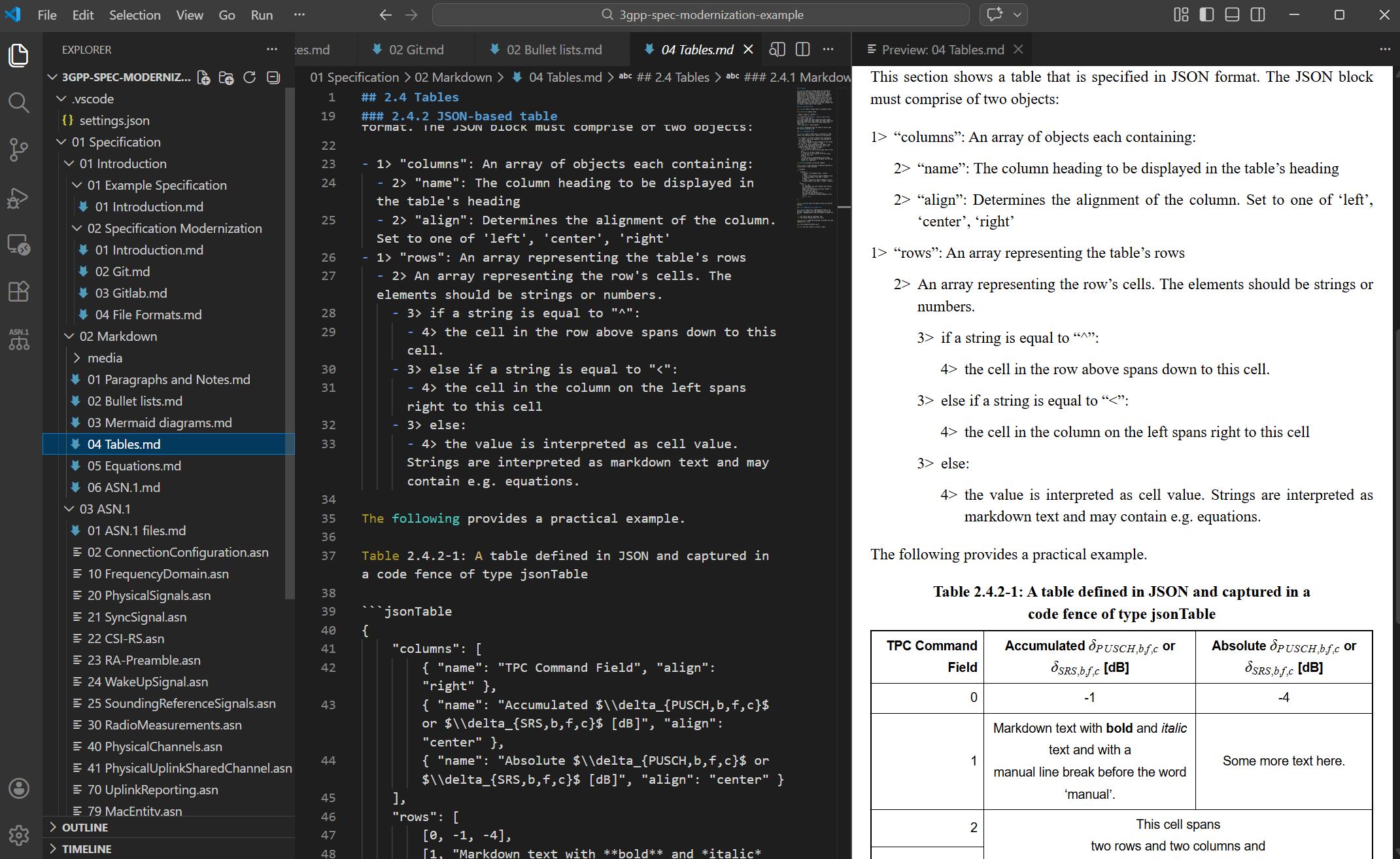
Figure 1.5.1-1: Live preview of markdown files
When you switch to another source file the live preview updates, too.
When you close the preview it remains closed until you re-open it via the context menu.
We expect the specification to be split into many markdown-, ASN.1- and JSON files which represent one or a few sub-section each. Furthermore, those markdown files should be ordered in a suitable folder structure (e.g. by sections).
To preview a rendered version of some or all source files, select the files and/or folders in the explorer pane (using Ctrl- or Shift) and right-click to open the context menu. Choose "SpecPress: Preview Selected".
SpecPress asks for the version that you would like to preview. Press ENTER to see the current version of the local files. Alternatively, choose a Git commit from the drop-down menu or by pasting a hash.
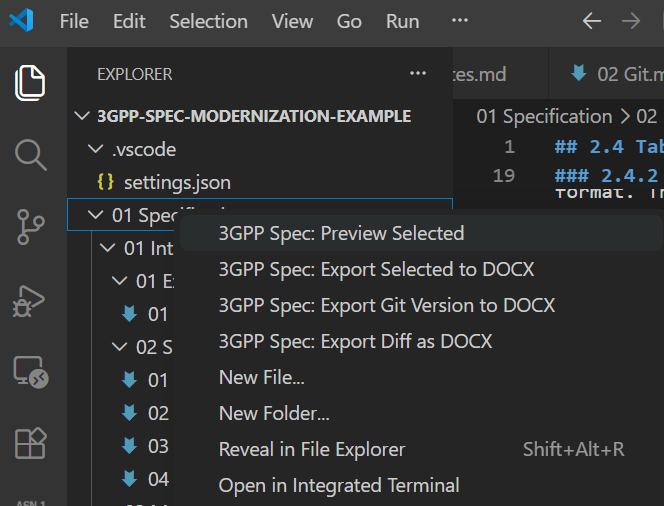
Figure 1.5.2-1: Context menu multi-file operation
Assume that you scroll in the multi-page preview and would like to edit a specific section. To open the corresponding source file in the editor pane, right click into the respective section of the preview and choose "SpecPress: Edit this section" (or try to double-click into the section). If you later want to switch to the previous multi-page preview, press "Ctrl-Shift-M".
Beyond regular markdown files SpecPress also comprehends asn files. If a live preview is activated for such files, the plug-in loads the content of those files and interprets it as content of a fenced code block of type asn (see below) and hence renders them in the same way. And when generating a preview of an entire folder (and possible sub-folders) the preview loads also the contained asn files and embeds them into the preview.
In the multi-page preview, SpecPress extracts leading comment lines (if any) and the module name from the asn file and creates a delimiting section heading for this ASN.1 module as well as a descriptive paragraph prior to the actual ASN.1 code.
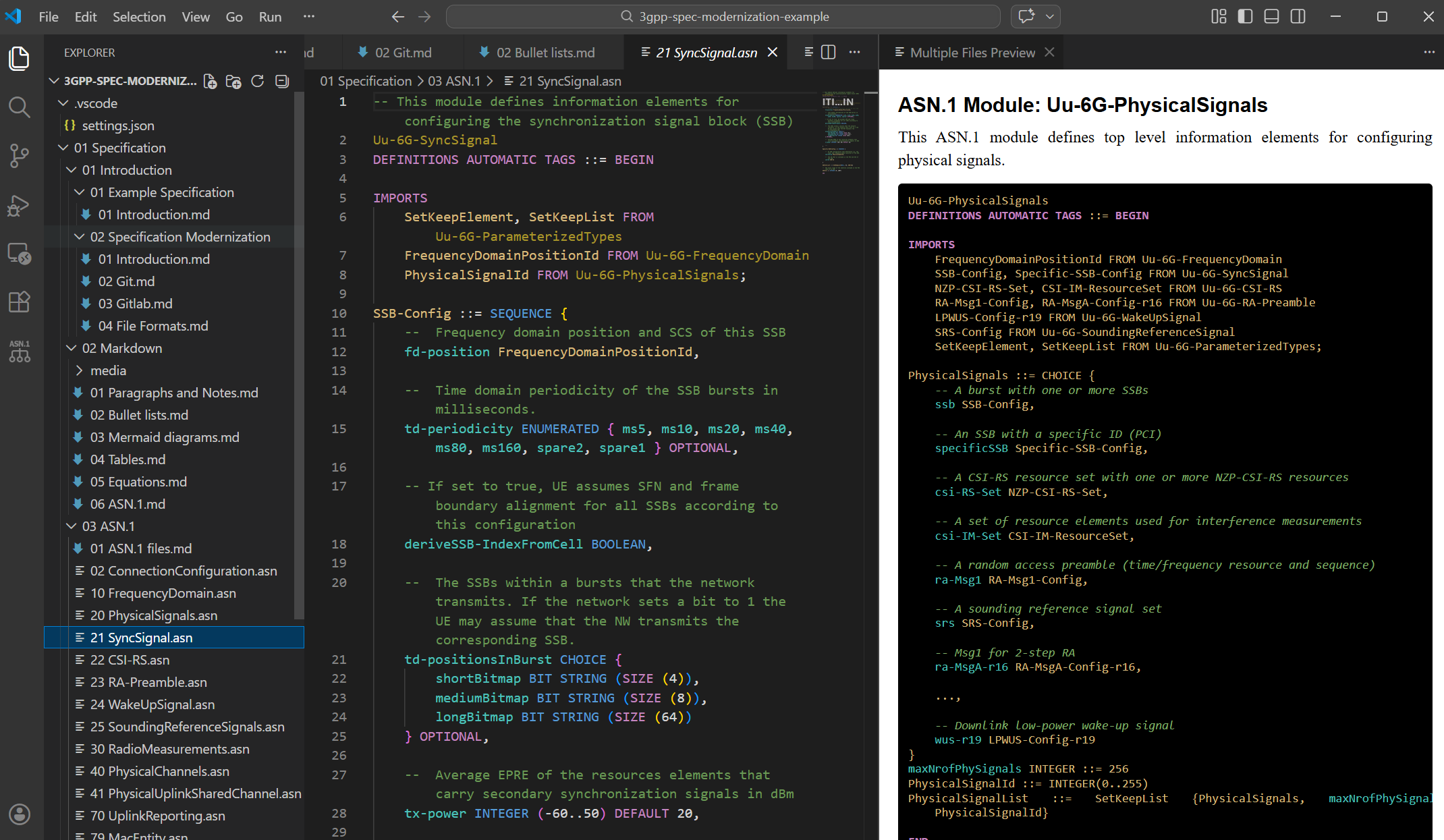
Figure 1.5.3-1: Live preview of ASN.1 files
The live-preview (of one or several files) may be exported to a standalone HTML file. Right-click onto the live preview and choose "Export to HTML". A save dialog opens with a timestamped default filename (e.g. 2026-03-31 14-30-00 Export.html). The dialog initially opens in the folder configured via specpress.defaultExportFolder, or in the last used export folder.
The function converts and exports the concatenated files including an embedded CSS and scripts to render the embedded mermaid figures. It also creates a media directory next to the HTML file containing all images used in the document.
The HTML file can be shared and opened in a browser.
To export a DOCX version, select one or more files and/or folders in the VS-Code explorer pane. Right-click and choose "Export Selected to DOCX". The extension then guides you through the following steps:
-
Version selection — A searchable commit picker appears showing the 200 most recent git commits. Choose "Local files (current workspace)" to export the current working copy, or select a specific commit/branch/tag to export an older version. You can type to filter by commit message, hash, or ref name.
-
Front page selection (spec root only) — When exporting from the specification root, you can choose between:
- Specification Front Page — Uses the configured front page (if
specpress.frontPageDatais set) - CR Cover Page — Uses a Change Request cover page if a draft CR file (
CRxxxx.json) is detected in thehistory/folder - No Front Page — Exports without a cover page
The extension automatically detects available options and validates CR data. If validation fails, an error dialog shows the issues with an "Open CR File" button to fix them. See the specpress CR Cover Page documentation for details on creating CR files.
- Specification Front Page — Uses the configured front page (if
-
Save location — A save dialog opens with a timestamped default filename (e.g.
2026-03-31 14-30-00 Export.docx). If exporting from a git commit, the short hash is appended (e.g....Export_abc1234.docx). The dialog initially opens in the folder configured viaspecpress.defaultExportFolder, or in the last used export folder. -
Export — The extension collects all markdown and ASN.1 files from the selection, processes section numbers, renders mermaid diagrams, converts equations, and generates the DOCX file with 3GPP-style formatting.
Standalone CR Cover Page Export:
You can export just a CR cover page without specification content:
- Navigate to
spec/history/folder - Right-click on a CR JSON file (e.g.,
CR1234.jsonorCRxxxx.json) - Select "Export Selected to DOCX"
- The extension exports only the CR cover page as a DOCX file
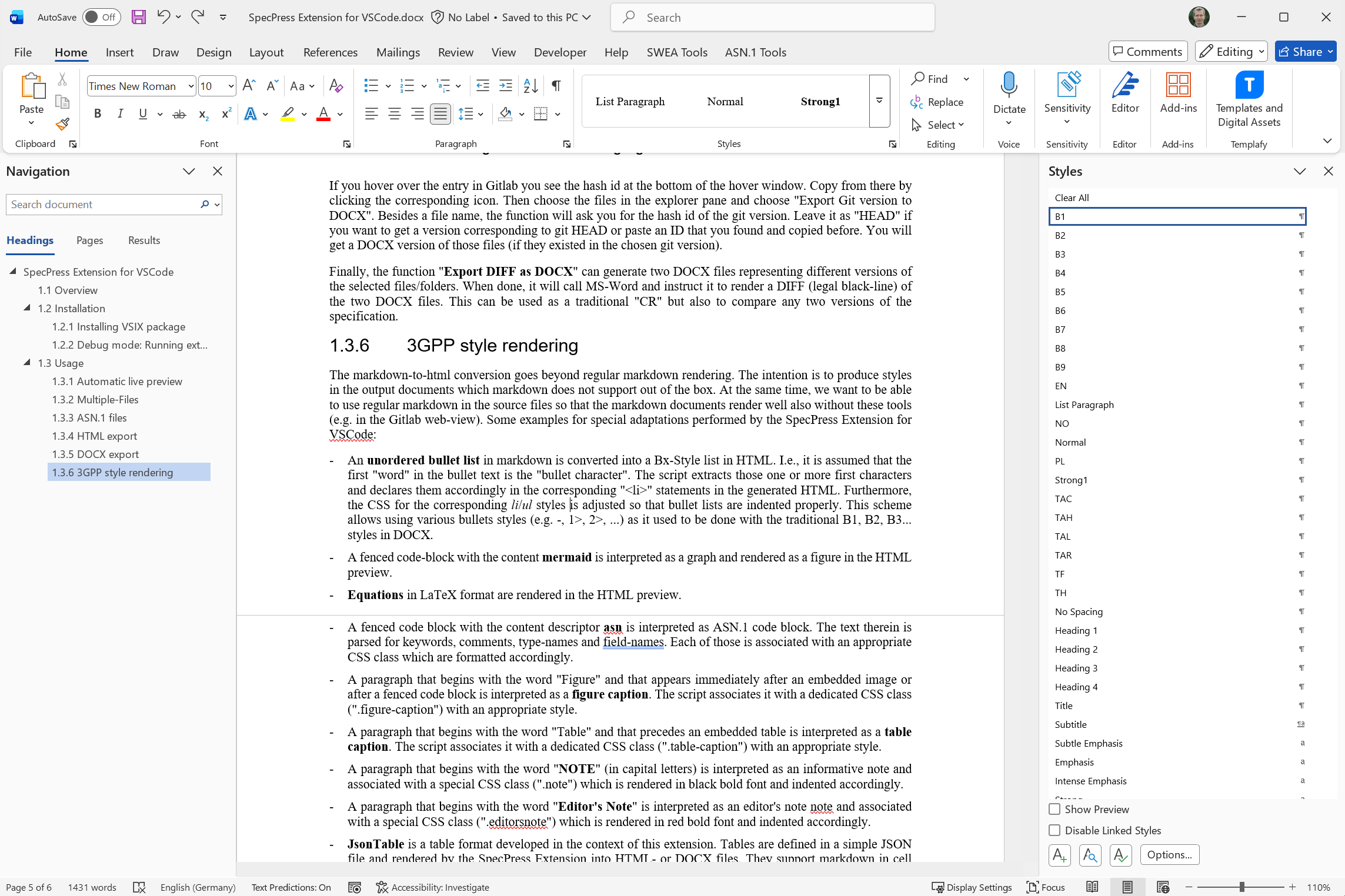
Figure 1.5.5-1: A DOCX file exported by the SpecPress extension and opened in MS-Word
To generate a PDF version of the specification, it is recommended to generate the DOCX version and to convert that into PDF.
The "Compare as DOCX" function generates a tracked-changes comparison between 2-5 versions of your specification. This is useful for creating Change Requests (CRs) or reviewing changes across multiple versions.
Quick Start:
- Select files/folders in the Explorer pane
- Right-click → "Compare as DOCX"
- Select versions (2-5 commits or local files)
- Enter author names for each transition (smart defaults provided)
- Choose omitted section markers (Yes/No)
- Save with auto-generated filename
Key Features:
- Compare 2-5 versions in a single operation
- Each version transition gets its own author name
- Smart author defaults from commit messages
- CR-based filename generation when available
- Press Enter on "None" from 3rd version onwards to finish early
For detailed documentation including version selection, author naming, filename generation, testing, and troubleshooting, see DOCX DIFF documentation.
MS-Word must be installed for this function to work.
The live preview (single-file or multi-file) can show tracked changes against a baseline commit. This is useful for reviewing what has changed since a previous version without leaving the editor.
To enable change tracking, right-click into the preview and choose 'SpecPress: Enable Change Tracking'. A commit picker appears — select the baseline commit to compare against. The preview then highlights:
- Insertions — shown in blue with underline
- Deletions — shown in red with strikethrough
- Changed images/diagrams — shown side by side (old and new)
The preview title changes to 'Preview (changes)' while change tracking is active. Edits to the source files are reflected in real time, with the diff updating as you type.
To disable change tracking, right-click the preview and choose 'SpecPress: Disable Change Tracking'. The preview returns to its normal rendering.
The specpress library performs extensive 3GPP-style rendering of markdown content (bullet styles, figure/table captions, NOTE/EXAMPLE/Editor's Note paragraphs, ASN.1 syntax highlighting, LaTeX equations, Annex headings, hyperlinks, JsonTable, etc.).
For full documentation of the rendering rules, see the specpress README.
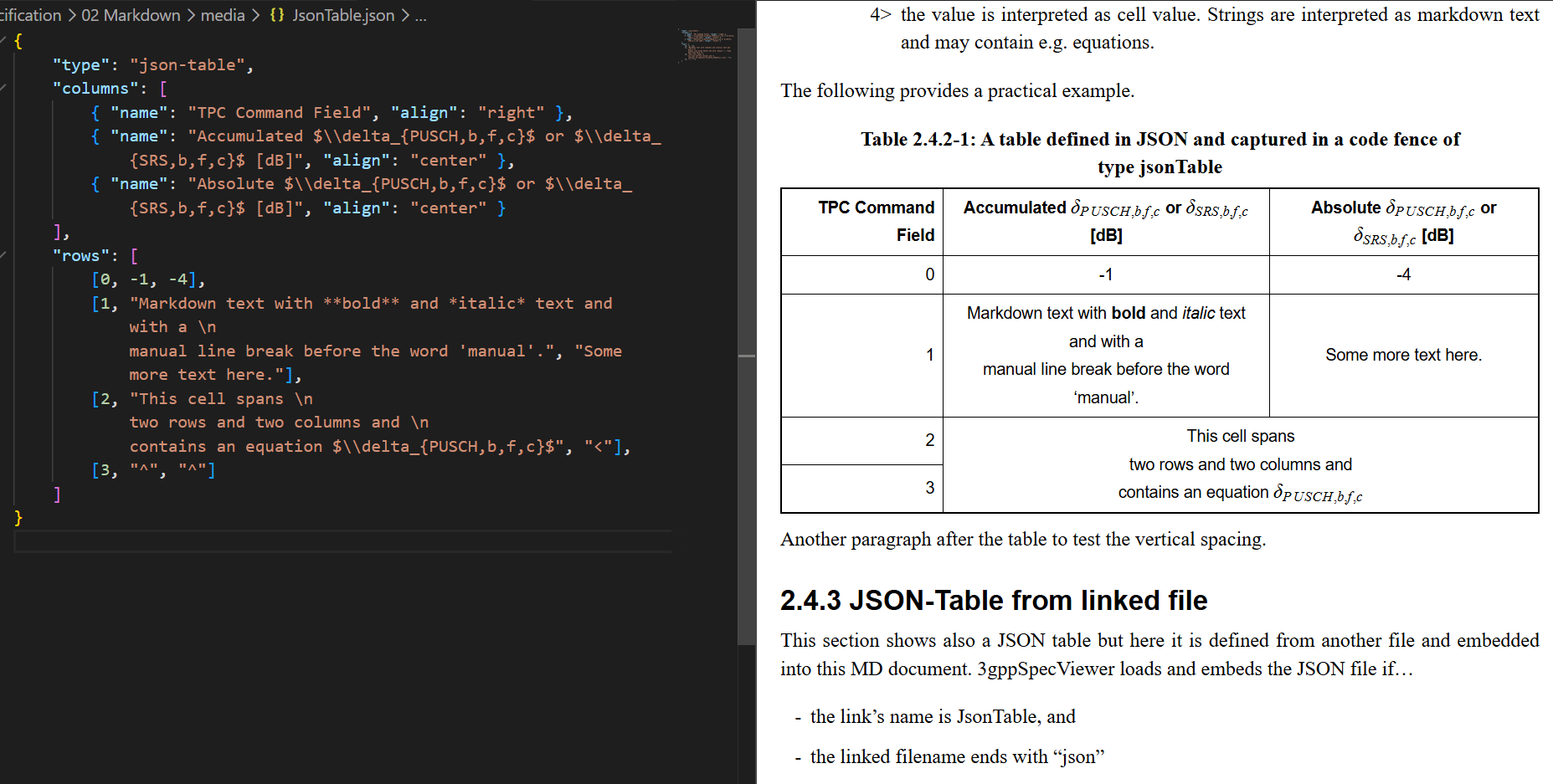
Figure 1.5.8-1: Screenshot of a JsonTable in VS-Code
Section numbering is a core feature of the specpress library. It derives section numbers automatically from the folder and file hierarchy using x-placeholders in headings and captions. Enable it by setting specpress.deriveSectionNumbers to true.
For full documentation of the section numbering rules (folder/file structure, x-placeholders, auto-generated headings), see the specpress README.
When exporting to DOCX, mermaid diagrams are rendered to SVG using a hidden VS-Code webview. The mermaid library (mermaid.min.js) is automatically downloaded from CDN on first use and cached in VS-Code's global storage. It is refreshed every 24 hours; if offline, the stale cache is reused.
The rendered SVGs are cached on disk (in a cached/ directory next to the spec root) so that unchanged diagrams are never re-rendered. For full documentation of the SVG caching mechanism (cache location, cache keys, cleanup), see the specpress README.
The extension provides a dedicated side pane for working with RAN4 band combination data (TS 38.101). It allows browsing, filtering, validating, and previewing band combination JSON files directly in VS Code.
Configuration:
To enable the Band Combinations pane, configure the specpress.bandCombinationFolder setting to point to the folder containing your band combination JSON files:
{
  "specpress.bandCombinationFolder": "path/to/your/bc-data"
}
The folder should contain CA_*.json, DC_*.json, and n*.json files as described in the specpress Band Combinations documentation.
Features:
- Tree view — Lists all band combinations sorted by BC-ID. Toggle between CA, DC, and Band file types.
- Filter pane — Filter by band numbers (Any of / At Least / Only), number of carriers, number of bands, properties (Intra/Inter, FR1/FR2, Contiguous/Non-contiguous, NR only, SUL), UL/DL notes, and git-modified status.
- Preview — Click a BC entry to see a rendered preview of its data.
- Validation — Run schema and content validation against the loaded data, with results written to a log file.
- Normalize — Right-click a JSON file to rewrite it with canonical key ordering and consistent formatting.
Clone the repository and install dependencies as described in 1.2.1 Building from Source.
When you want to run the plugin in debug/development mode you should load this repo as workspace in VS-Code. Then you may press F5 to start the launch script (see ".vscode" subfolder). But before doing so, make sure that you cloned also an example specification e.g. from https://forge.3gpp.org/rep/fs_6gspecs_new/ericsson_multifiletypes_onem2m_example.
To work on both repos simultaneously (extension + specpress library), clone specpress as a sibling folder and run:
co-develop.cmdThis creates a junction from node_modules/specpress to your local specpress repo. Press F5 to launch the Extension Development Host with both local codebases active.
The recommended development workflow:
co-develop.cmd— links local specpress (run once, or afternpm install/build.cmd)npm test— runs unit tests against the local specpress- Press F5 — manual testing in the Extension Development Host
build.cmd— clean build for release (installs specpress from npm, breaks the junction)
Note: build.cmd safely removes the junction before cleaning node_modules, so it will not delete your local specpress repo. After building, run co-develop.cmd again to restore the junction for continued development.
All tests run with Node.js and do not require VS-Code. After npm install, run the test suite:
npm testThe full test suite includes a DOCX DIFF end-to-end test that requires Microsoft Word. If Word is not installed, this test is automatically skipped with a message.
For faster testing during development, use the quick mode which skips slow tests:
npm run test:quickThe extension-specific tests are in test/vscode/ and cover the ConfigLoader, StateManager, JsonTable editor logic, and Band Combinations functionality.
The bulk of the conversion tests (markdown-to-HTML, markdown-to-DOCX, section numbering, ASN.1, etc.) live in the specpress library.
This extension is a thin VS Code shell around the specpress library. The boundary is strict:
- Extension code (
src/vscode/) handles ONLY VS Code integration: commands, webviews, configuration, UI. - All markdown parsing, conversion, rendering, and file processing logic lives in
specpress. - Never duplicate specpress logic in the extension.
Key patterns:
- ConfigLoader — centralized settings access with caching; invalidated on
onDidChangeConfiguration, re-reads lazily. - StateManager — single object for all runtime state; no scattered module-level variables.
- Command isolation — each command handler is a self-contained async function in its own file under
src/vscode/, receivingstate,config, andcontextas parameters. - Singleton panel — reuse the existing webview panel; clean up on disposal.
- Lifecycle management — tie listener disposal to panel disposal; push all disposables to
context.subscriptions.
- CommonJS modules (
require()/module.exports) - 2-space indentation, no semicolons
- Single quotes for strings, template literals for HTML/multi-line
- camelCase for functions and variables, PascalCase for classes
- Command IDs:
specpress.prefix (e.g.,specpress.preview) - Import dependencies at the top, grouped: VS Code API → Node.js built-ins → specpress library
- ❌ Implementing conversion logic in the extension — delegate to specpress
- ❌ Scattered module-level
letvariables — use StateManager - ❌ Hardcoded path separators — use
path.join() - ❌ Ignoring user cancellation (null from dialogs/pickers) — always check and return early
- ❌ Creating new panels on every invocation — reuse with singleton pattern