
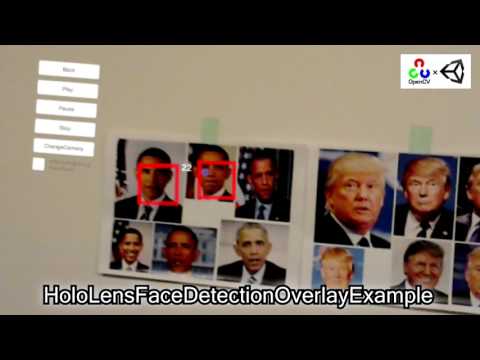
- HoloLens2 22621.1399
- Windows 10 SDK 10.0.19041.0 / 10.0.22621.0
- Unity 2023.3.62f3 (Built-in Render Pipeline / OpenXR 1.11.2 / MRTK 3.3.0 / DirectX 11 / Visual Studio 2022 MSVC v143)
- OpenCV for Unity 3.0.4+
- EnoxSoftware/HoloLensCameraStream
The setup procedure for HoloLens projects using Unity and MRTK has changed significantly. The legacy Mixed Reality Feature Tool no longer functions on the latest Windows 11 environments.
To run this project, you must import the following assets:
- Unity OpenXR Plugin 1.14.3
- Microsoft Mixed Reality OpenXR Plugin 1.11.2
- Mixed Reality Graphics Tools 0.8.1
- MRTK3 packages listed below
The MRTK3 package versions used by this project are based on the following GitHub release:
Note: MRTK3 packages are independently versioned. There is no single unified MRTK3 version number. The versions below correspond to the packages included in the above release.
| Package | Version |
|---|---|
org.mixedrealitytoolkit.core |
3.3.0 |
org.mixedrealitytoolkit.input |
3.3.0 |
org.mixedrealitytoolkit.uxcore |
3.3.0 |
org.mixedrealitytoolkit.spatialmanipulation |
3.4.0 |
org.mixedrealitytoolkit.uxcomponents |
3.4.0 |
org.mixedrealitytoolkit.uxcomponents.noncanvas |
3.1.5 |
org.mixedrealitytoolkit.standardassets |
3.2.1 |
Please install the packages in the following specific order to ensure all dependencies are resolved correctly:
-
Unity OpenXR Plugin
-
Add the following line to the
dependenciessection of themanifest.jsonfile:"com.unity.xr.openxr": "1.14.3",
-
-
Microsoft Mixed Reality OpenXR Plugin
-
Add the following line to the
dependenciessection of themanifest.jsonfile:"com.microsoft.mixedreality.openxr": "1.11.2",
-
-
MRTK Graphics Tools
-
Add the following line to the
dependenciessection of themanifest.jsonfile:"com.microsoft.mrtk.graphicstools.unity": "https://github.com/microsoft/MixedReality-GraphicsTools-Unity.git?path=/com.microsoft.mrtk.graphicstools.unity#v0.8.1",
-
-
MRTK Core Definitions (
org.mixedrealitytoolkit.core3.3.0)- Download
org.mixedrealitytoolkit.core-3.3.0.tgzfrom the MRTK3 Core v3.3.0 GitHub release. - Import it using UPM's Add package from tarball... option.
- Download
-
MRTK Input (
org.mixedrealitytoolkit.input3.3.0)- Download
org.mixedrealitytoolkit.input-3.3.0.tgzfrom the same MRTK3 GitHub release. - Import it using UPM's Add package from tarball... option.
- Download
-
MRTK UX Core (
org.mixedrealitytoolkit.uxcore3.3.0)- Download
org.mixedrealitytoolkit.uxcore-3.3.0.tgzfrom the same MRTK3 GitHub release. - Import it using UPM's Add package from tarball... option.
- Download
-
MRTK Spatial Manipulation (
org.mixedrealitytoolkit.spatialmanipulation3.4.0)- Download
org.mixedrealitytoolkit.spatialmanipulation-3.4.0.tgzfrom the same MRTK3 GitHub release. - Import it using UPM's Add package from tarball... option.
- Download
-
MRTK Standard Assets (
org.mixedrealitytoolkit.standardassets3.2.1)- Download
org.mixedrealitytoolkit.standardassets-3.2.1.tgzfrom the same MRTK3 GitHub release. - Import it using UPM's Add package from tarball... option.
- Download
-
MRTK UX Components (
org.mixedrealitytoolkit.uxcomponents3.4.0)- Download
org.mixedrealitytoolkit.uxcomponents-3.4.0.tgzfrom the same MRTK3 GitHub release. - Import it using UPM's Add package from tarball... option.
- Download
-
MRTK UX Components (Non-Canvas) (
org.mixedrealitytoolkit.uxcomponents.noncanvas3.1.5)- Download
org.mixedrealitytoolkit.uxcomponents.noncanvas-3.1.5.tgzfrom the same MRTK3 GitHub release. - Import it using UPM's Add package from tarball... option.
- Download
-
Download the latest release
.unitypackage. -
Create a new Unity project.
- Use
HoloLensWithOpenCVForUnityExampleas the project name. - Change the platform to
UWPin the Build Settings window.
- Use
-
Import and configure the Unity OpenXR Plugin, Microsoft Mixed Reality OpenXR Plugin, Mixed Reality Graphics Tools, and MRTK3.
-
Import OpenCVForUnity.
-
Select Tools > OpenCV for Unity > Open Setup Tools.
-
Click the Move StreamingAssets Folder button.
-
Keep the following files and delete the rest:
StreamingAssets/OpenCVForUnity/objdetect/haarcascade_frontalface_alt.xmlStreamingAssets/OpenCVForUnity/objdetect/lbpcascade_frontalface.xml
-
-
Clone the HoloLensCameraStream repository.
- Copy the
HoloLensCameraStream/HoloLensVideoCaptureExample/Assets/CamStream/folder into the project'sAssets/folder.
- Copy the
-
Import
HoloLensWithOpenCVForUnityExampleMRTK3.unitypackage. -
Add the Unity scene files to the build list.
- In the Build Settings window, add all
Assets/HoloLensWithOpenCVForUnityExample/*.unityfiles to the Scenes In Build list.
- In the Build Settings window, add all
-
Configure the project settings.
- Add
XR_PLUGIN_OPENXRto the Scripting Define Symbols list. - Enable the WebCam capability in the Publishing Settings tab.
- Add
-
(Optional) Configure performance settings for HoloLens.
- See Microsoft's recommended settings for Unity.
-
Build the project.
- In the Build Settings window, click Build.
- In the folder selection dialog, create a new folder named
Appnext to theAssetsfolder. - Select the
Appfolder as the build destination. - Unity will generate a Visual Studio solution in this folder.
-
Open the Visual Studio solution.
- Open the generated solution:
App/HoloLensWithOpenCVForUnityExample.sln - This Visual Studio solution is used to deploy the application to your HoloLens.
- Open the generated solution:
-
Configure the deployment settings.
-
In the Visual Studio toolbar, select the appropriate solution platform:
x86for HoloLens 1ARM64for HoloLens 2
-
Set the deployment target (the green Start button) to:
Deviceif the HoloLens is connected to your computer via USB.Remote Machineif the HoloLens is connected via Wi-Fi.
-
-
Deploy and run the application.
- Select Debug > Start Debugging in Visual Studio.
- Once the application is deployed to the HoloLens, you can check the deployment status and application output in the Output window.
- Print the AR marker
CanonicalMarker-d10-i1-sp500-bb1.pdfandArUcoMarkers_DICT_4X4_50_0-8.pdfon A4-size paper for use with the sample.
- Choosing a Unity version and XR plugin
- Known issues in Unity versions and packages
- Setting up a new Unity project with MRTK3
| Project Assets | Build Settings |
|---|---|
 |
 |
| Player Settings |
|---|
 |


